25Live Pro Training Manual
Fresno State
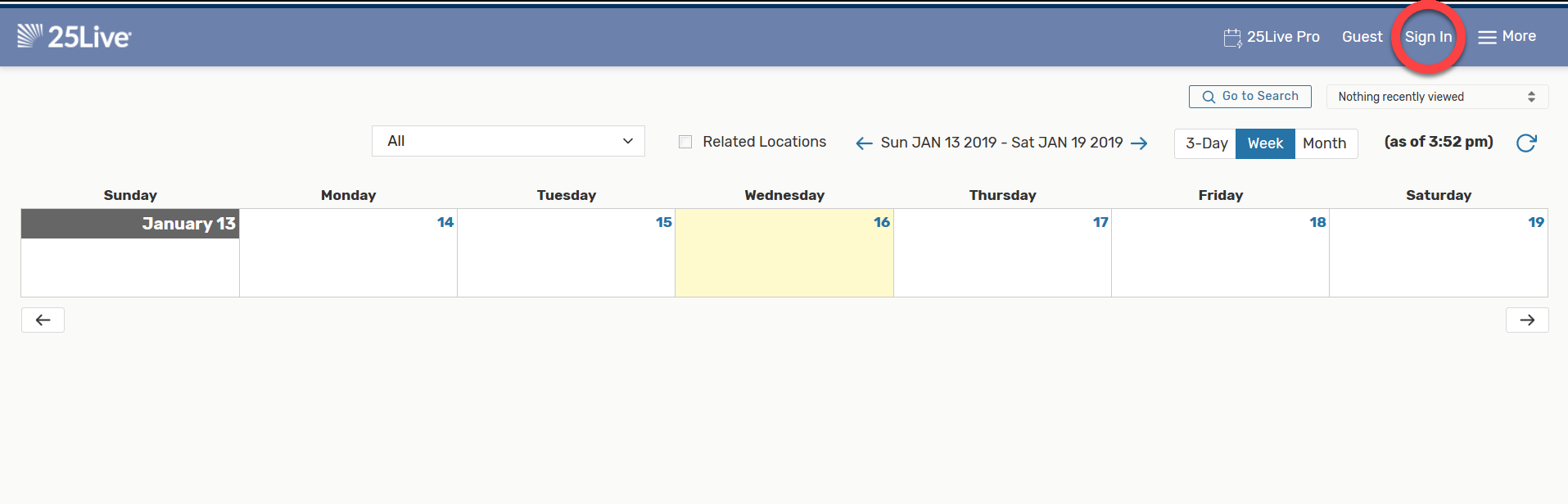
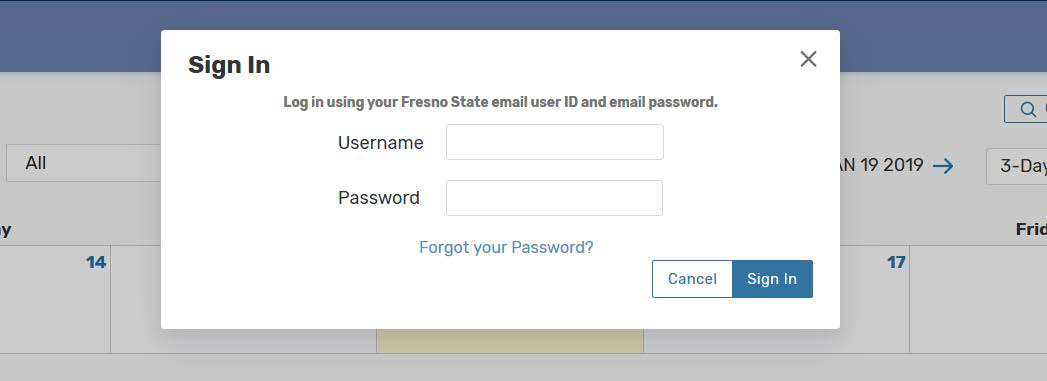
Sign in with your Fresno State email credentials
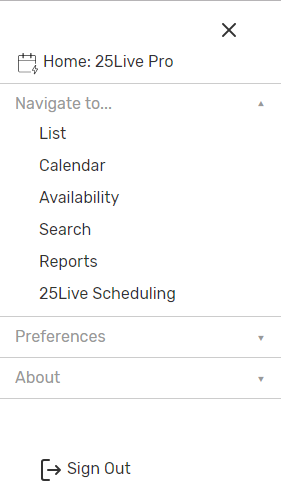
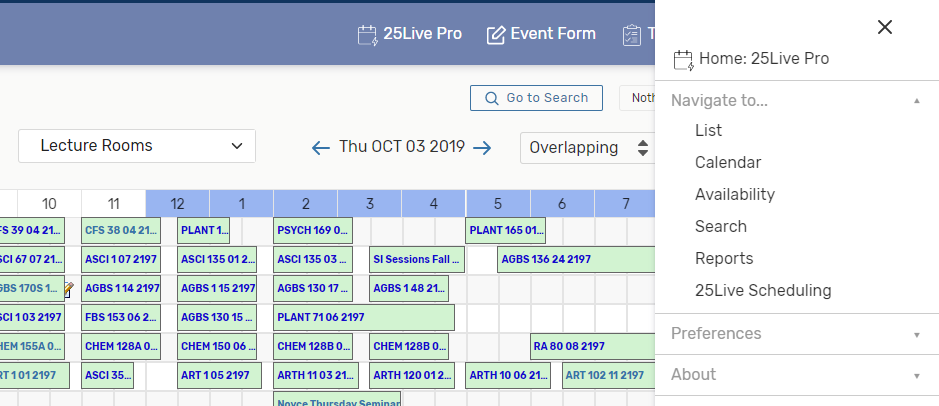
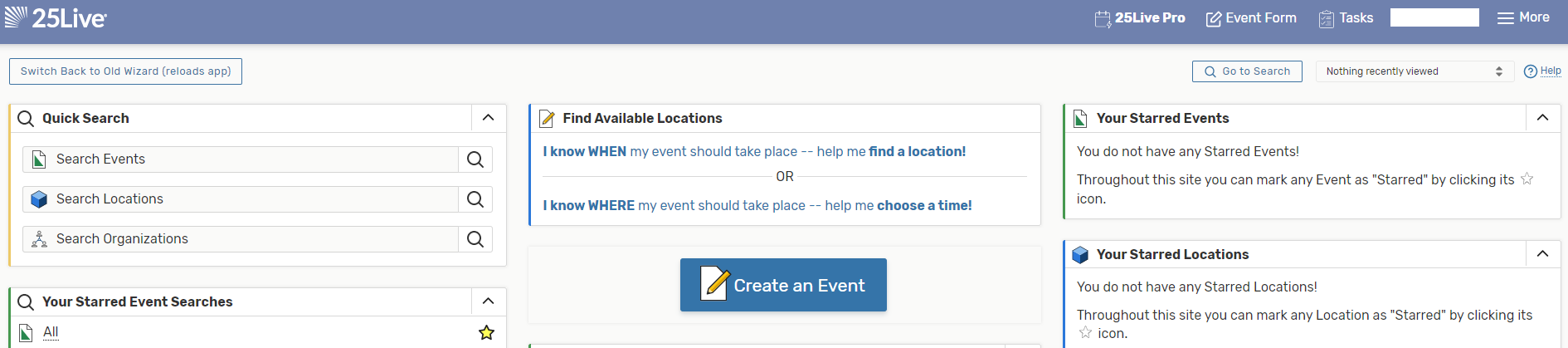
“More” is where you’ll find the options that used to be represented by tabs across your Home page
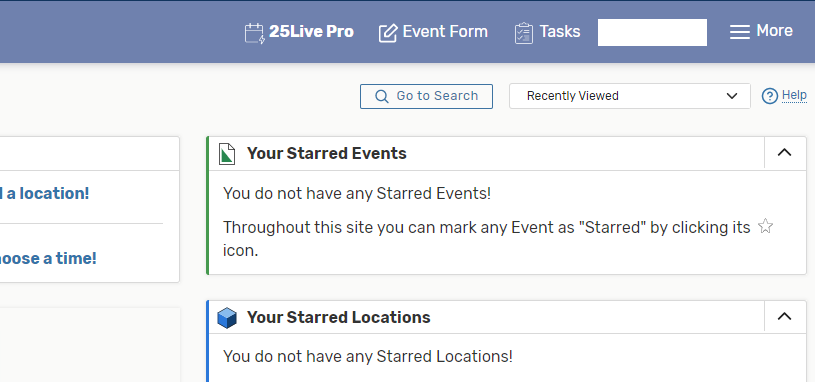
These links will take you to your Home Dashboard, which functions the same – just looks a little different (see next page).
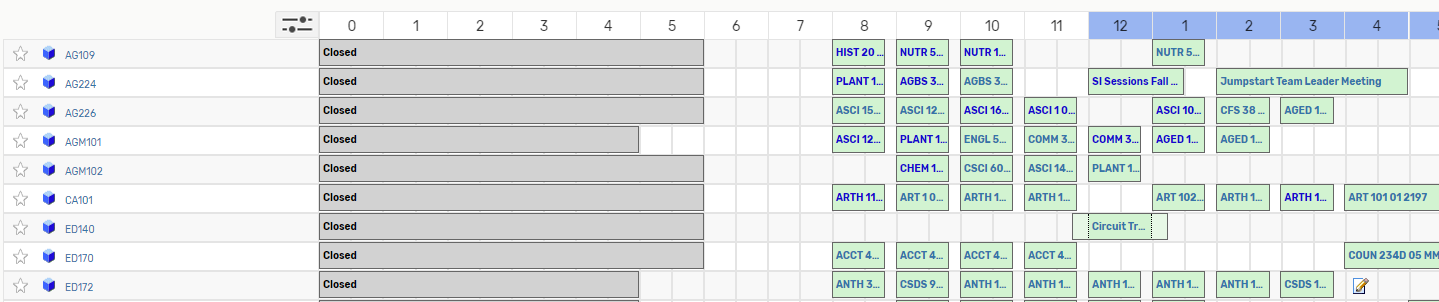
Finding an available room
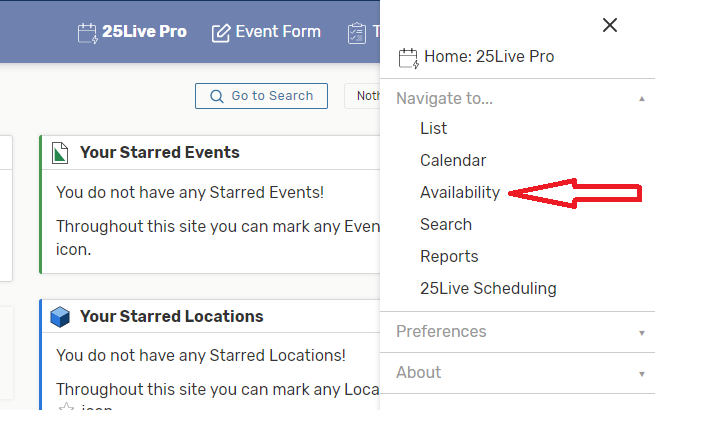
› Under More select Availability
› Select Lecture Rooms , Library Spaces, etc
› Select the appropriate date

Finding an available room
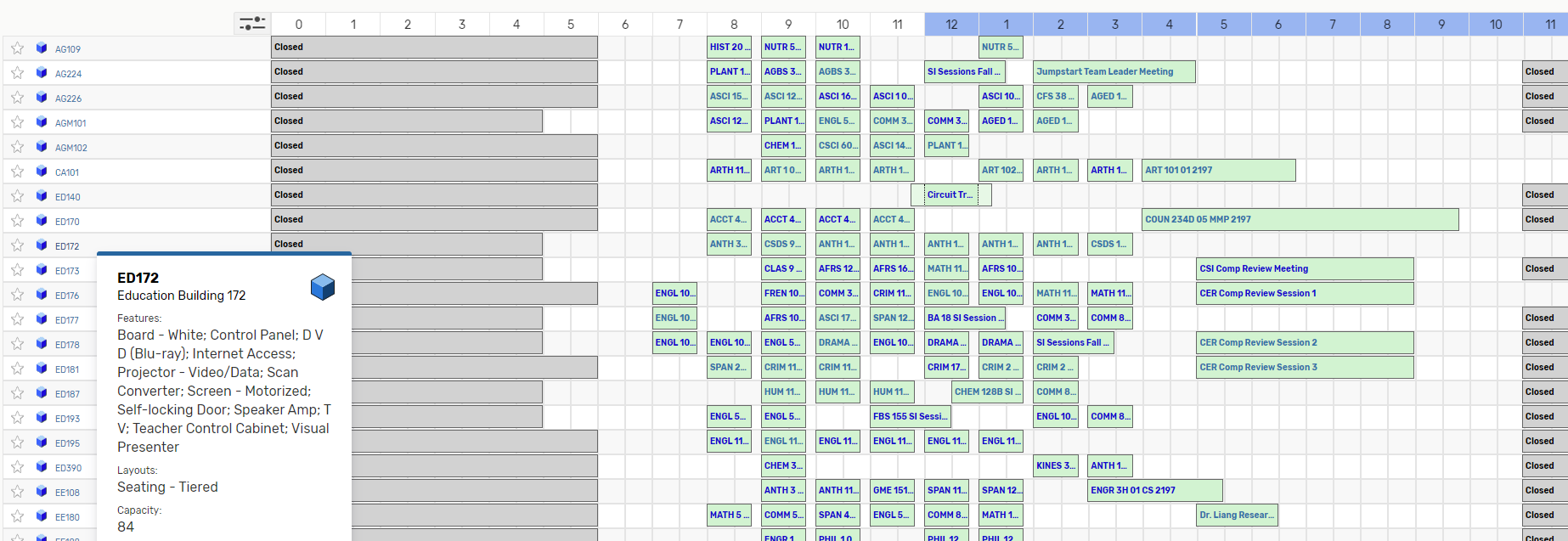
› Scroll down to look for a room that has an open time
› Hover over the available room to display the room information
Process an event request, place the cursor at the start time and select . This will
take you to the Event Form.
Looking at a specific room for available days/times
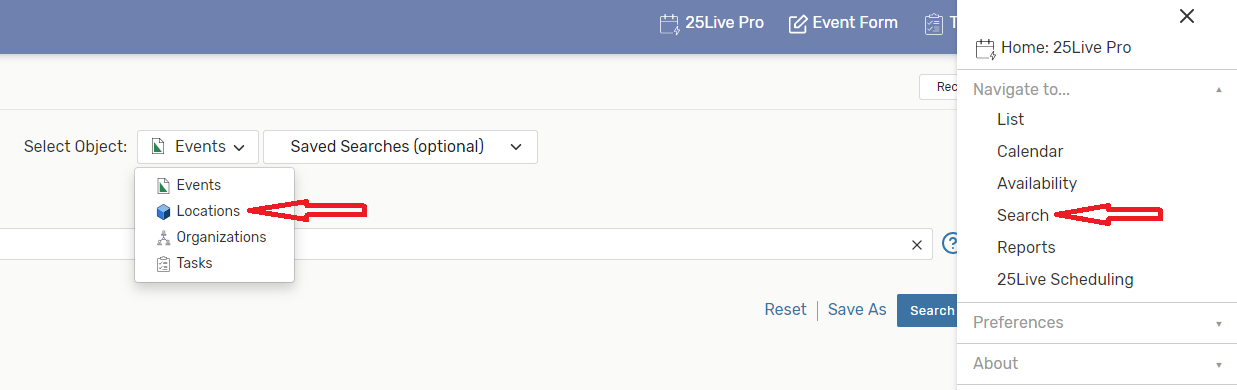
› Under More select Search
› Select Object: select Locations > Enter the room
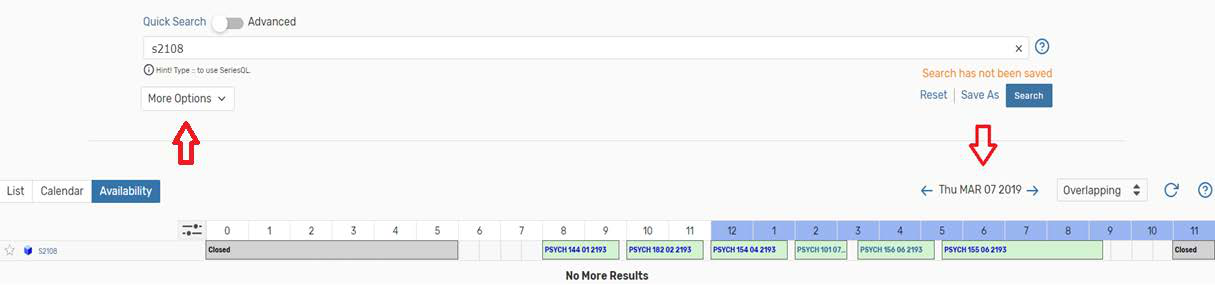
Enter the room in the Quick Search bar

View available days/times for a specific room
› Select List | Calendar | or Availability
Select List
› List shows the room details

Select Calendar
› Calendar shows scheduled events/classes
› Select date range
› View by number of weeks

Select Availability
› Availability shows one day schedule
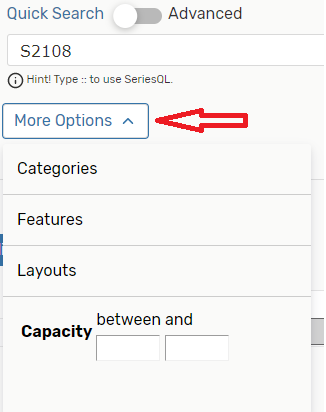
› Select More Options to expand your search
Processing an event from “Create an Event” or “Event Form”
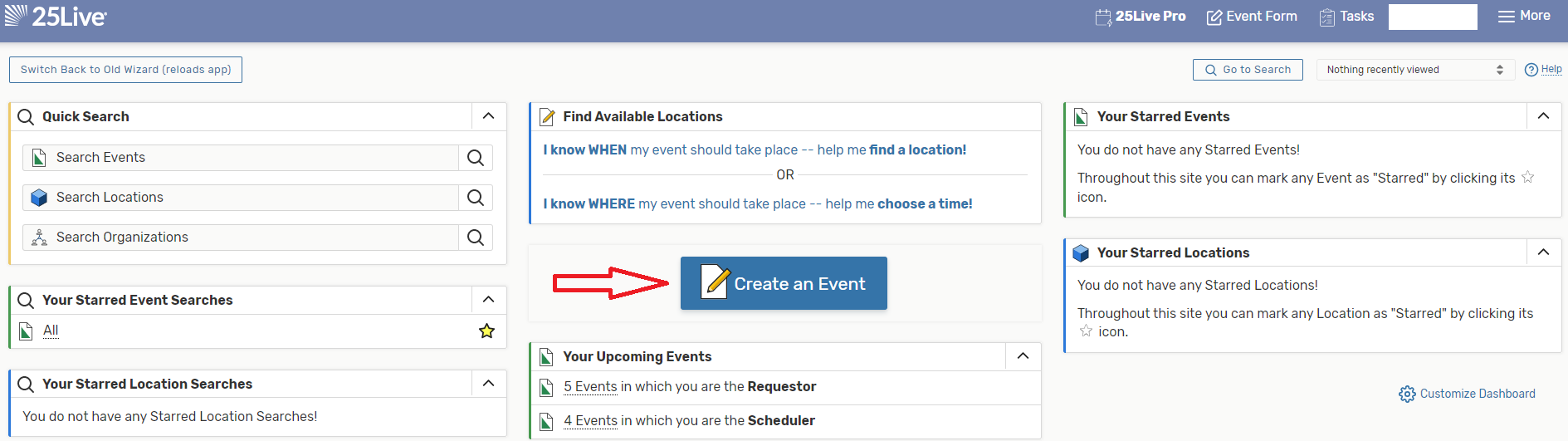
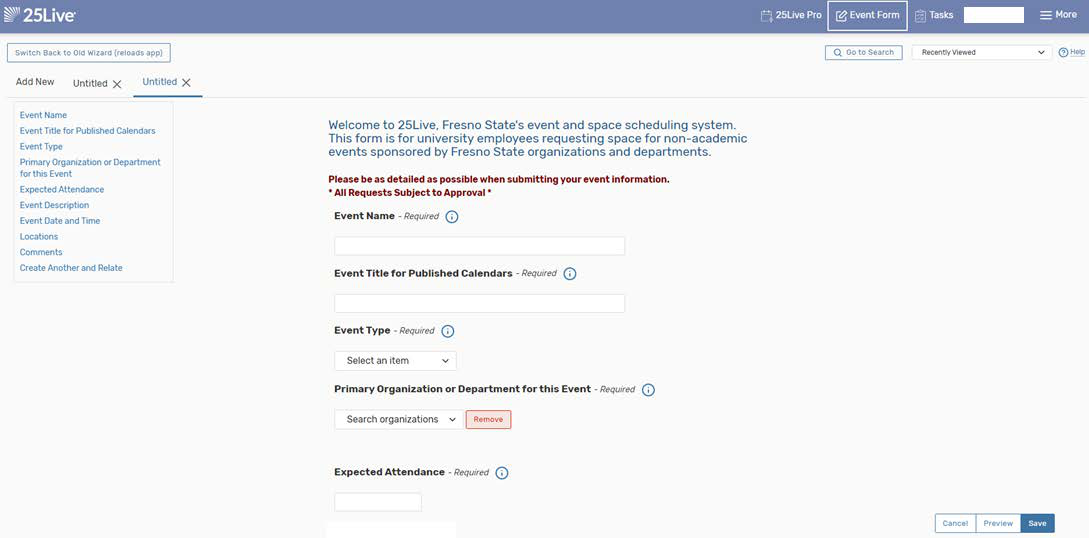
Fill in all areas that say “Required”. For more information on a specific item, select , to hide the information select it again. To save a specific item as a favorite, select . .
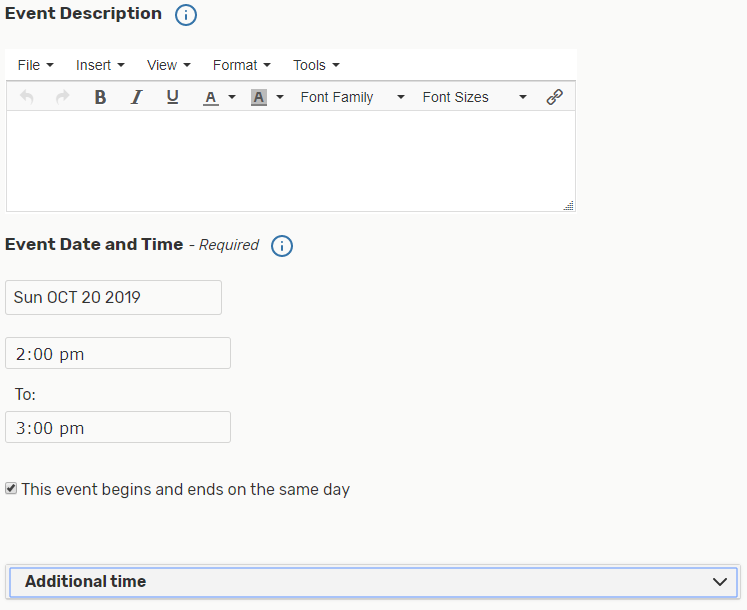
Event Description is optional (information for attendees of the event). This description
will be published to the Events Calendar.
This box should always be checked. If the event is repeated, select Repeating Pattern
(see next page for more information).
Select Additional time to have additional time for setup and takedown, if needed.
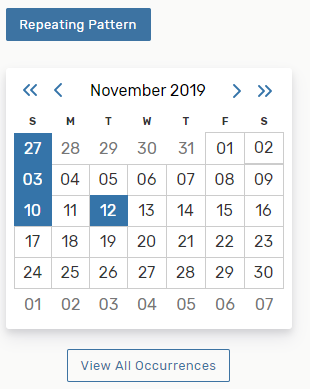
Repeating Pattern
Repeating Pattern – Ad hoc is the best to use, it’s easier to remove a day if the
room requested is not available on a particular day.
Select each day the event repeats.

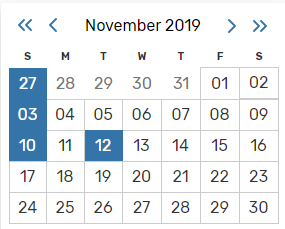
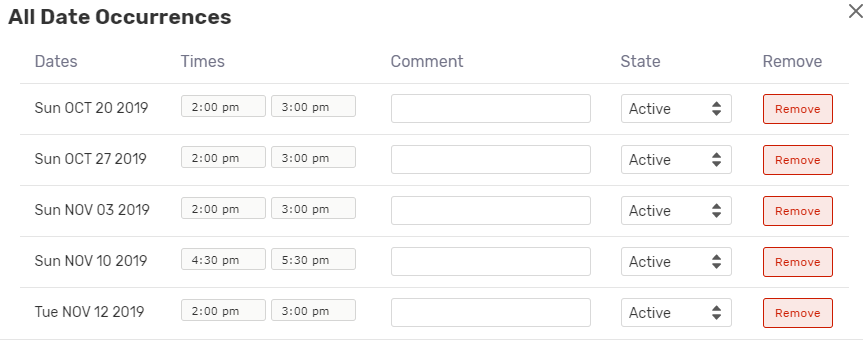
View all requested dates, select View All Occurrences
Along with having multiple days, it has the ability to have different times. At this
time, the bugs need to be worked out before different times can be used, so please
keep all days at the same time.
Removing a date – select Remove
Locations
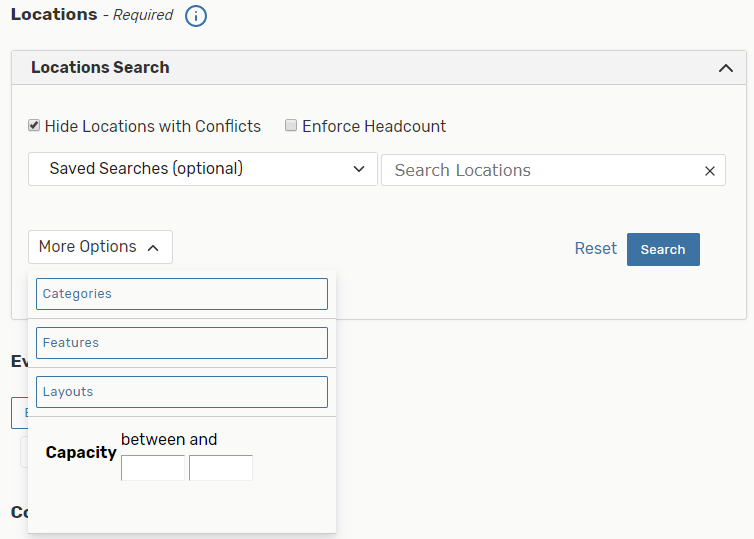
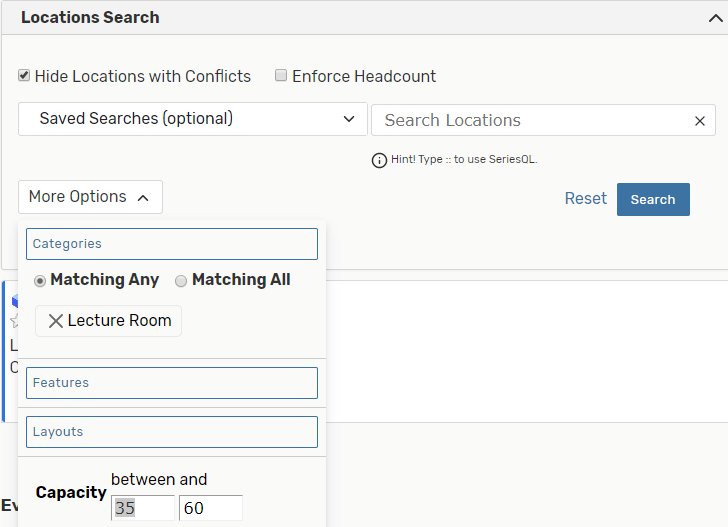
› To find only available rooms, check Hide Locations with Conflicts
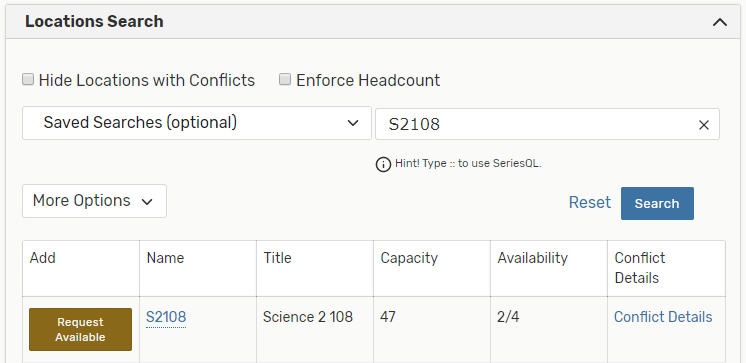
› Searching for a specific location, enter it in Search Locations and select Search
› Select More Options to narrow the search
Note: When you see the view below and can’t enter a room, select Reset.
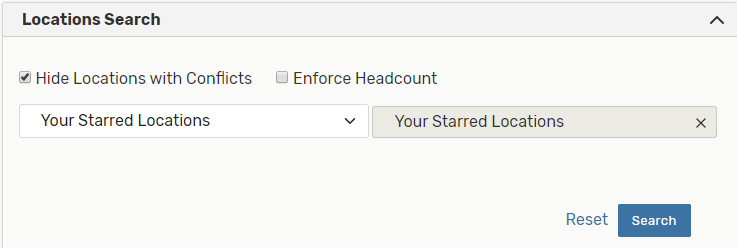
Specific Location Search with multiple days requested
Note: The room is only available 2 out of 4 days
Remove days with conflicts
› Select Conflict Details to see unavailable date(s)
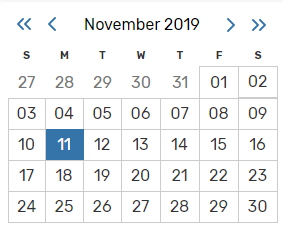
› On the calendar, select the unavailable date(s)
› Select Remove, do this for each day to remove
› Select Refresh to update the availability
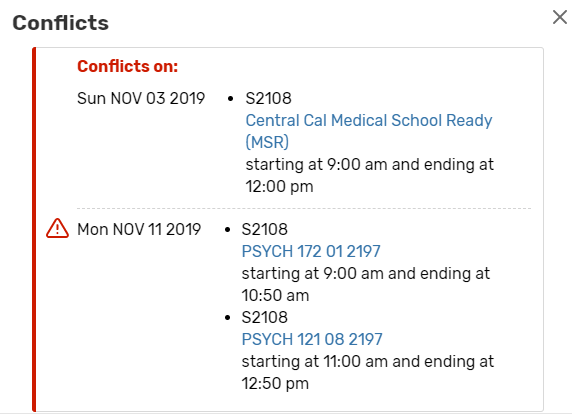

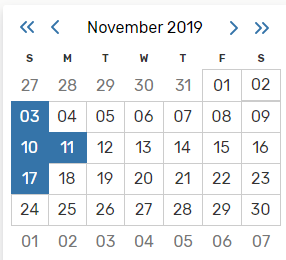
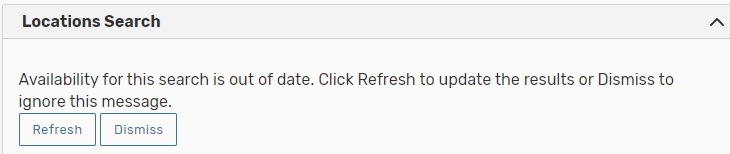
Location Search continued
› At this point look for another available room or look for other day(s) the room
is available, if needed
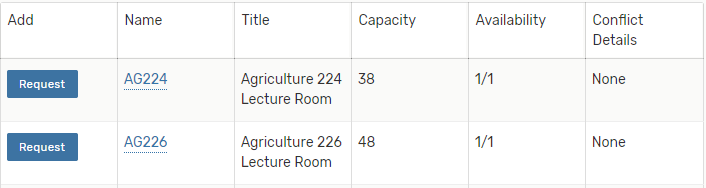
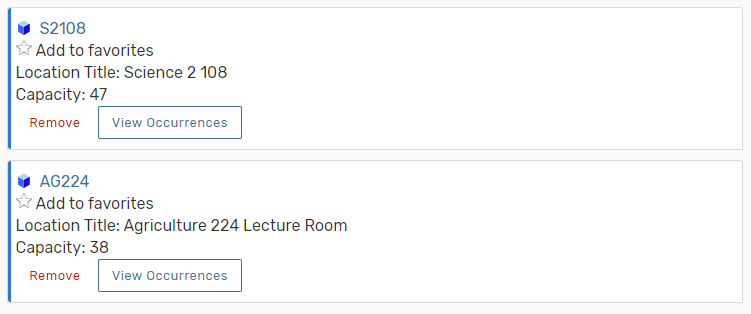
› Select Request to reserve the requested room(s), requested room(s) will show below
Note: all days requested are available
No conflicts.
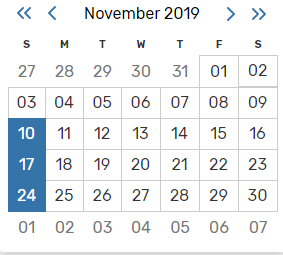
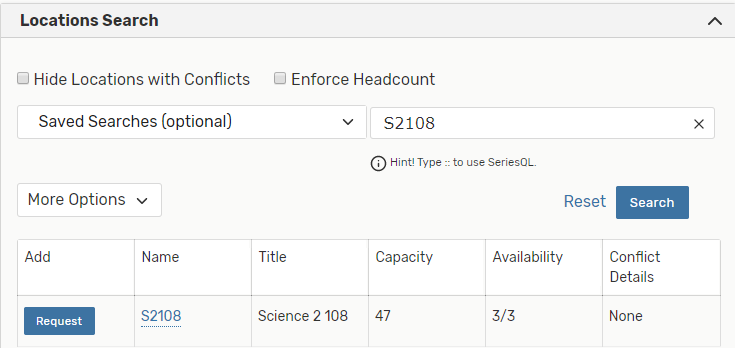
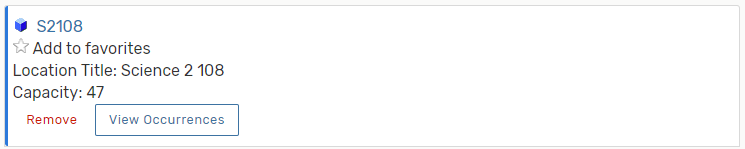
Finalize Location Search
› Look for an available room
› On the calendar, select and remove the dates that a room was already requested,
only have the day a room is still needed
› Select Refresh to clear the search
› Select Hide Locations with Conflicts
› Add specific items on More Options and select Search, select Request to add the
room
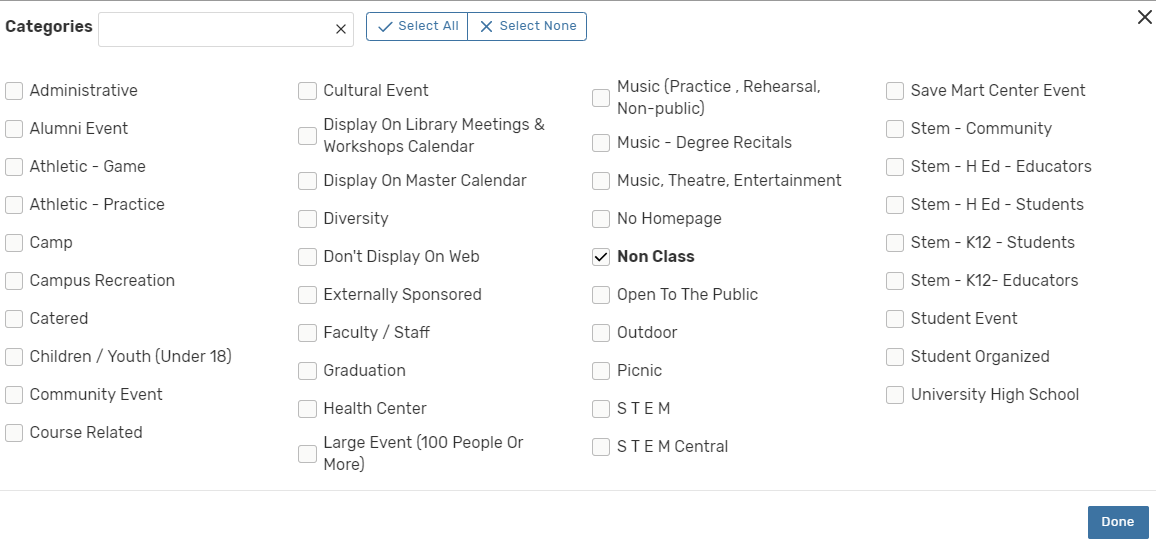
Event Categories
› Select the appropriate categories
› If the event should not be on the Events Calendar select “Don’t Display on Web”
and “No Homepage”
Comments
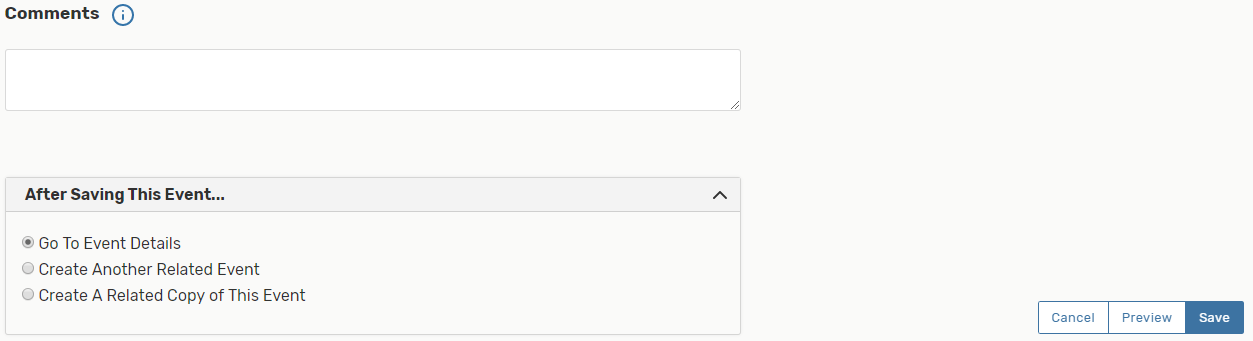
› Add any additional comments (this area will only be seen by the approver)
› Add specific information about the event, ie. ; serving food, this will help with
the approval
› Select Save to submit
This HTML version was generated with AI assistance and may contain errors or omissions. The original approved PDF remains the official document of record. An alternative accessible format is available upon request from the document creator in accordance with Title II of the ADA.