Scheduling Tips
Maintaining Schedule of Classes
Course Offering Numbers
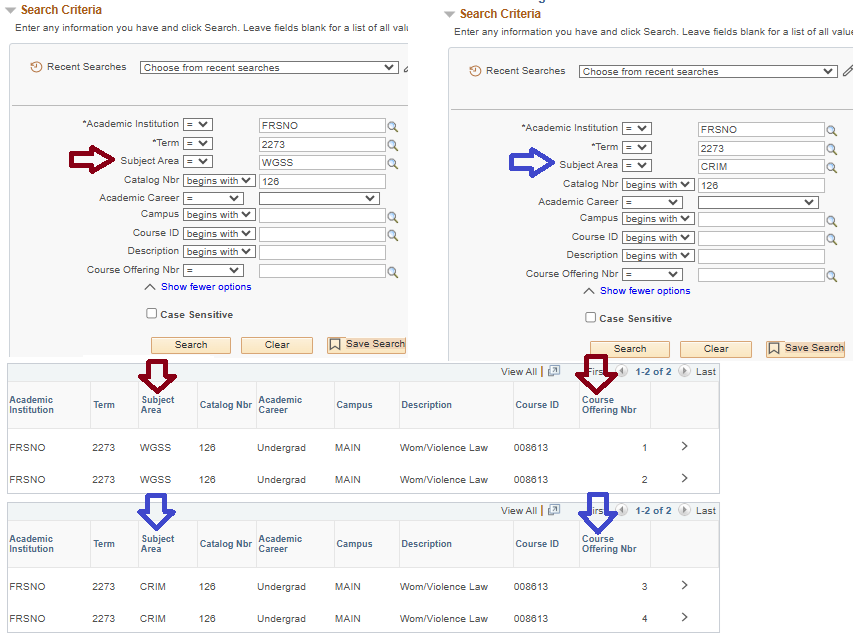
1. All stateside courses are scheduled using Course Offering #1
2. All Continuing and Global Education (CGE) courses are scheduled using Course Offering
#2 and only CGE will use the number.
3. Cross-listed courses are an exception with 2 courses listed with the same Course
ID and having 4 Course Offering numbers. Usually the subject (home dept) that has
the faculty teaching the course is set with Course Offering #1 and #2.
a. The stateside courses are scheduled using Course Offering #1 and #3. CGE courses
are scheduled using Course Offering #2 and #4. Only CGE will use these Course Offering
numbers to schedule classes.
Class Cancellation
Cancelling a class with 0 enrollment
1. Path: Curriculum Management > Maintain Schedule of Classes > Enrollment Cntrl tab
2. Class Status: select Cancelled Section from the dropdown; to the right of Class
Status is Cancel Class (this turns yellow as soon as the Cancelled Section is selected).
3. Select Cancel Class, make sure the date to the right is populated. If there are
multiple sections and the section being cancelled is not the first section, you will
automatically be sent to the first section.
Cancelling a class with enrollment
1. Obtain the student emails before cancelling the class. Path: Curriculum Management > Class Roster > Enter the Term > Subject > Catalog Nbr and select the correct section Nbr
a. Under the list of students select “Select All” > select “Notify Selected Students”
b. Email can be sent from this area, or the email addresses can be copied, and the email can be sent from Google email.
2. Ready to cancel class. Path: Curriculum Management > Maintain Schedule of Classes > Enrollment Cntrl tab
3. Check the “Cancel if Students Enrolled” box.
4. Class Status: select Cancelled Section from the dropdown; to the right of Class Status is Cancel Class (this turns yellow as soon as the Cancelled Section is selected).
5. Select Cancel Class, make sure the date to the right is populated. If there are multiple sections and the section being cancelled is not the first section, you will automatically be sent to the first section.
Class Notes
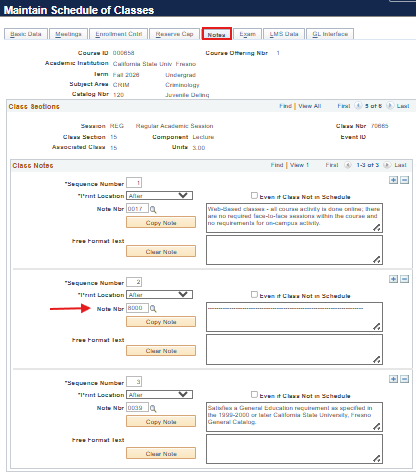
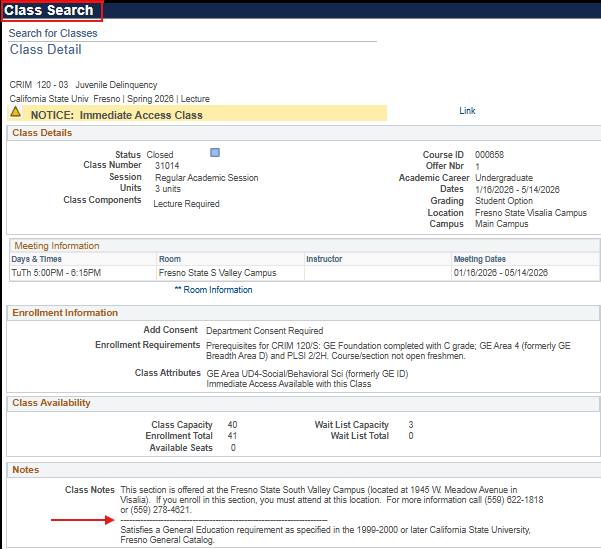
Class notes are used to provide additional information about a course for students. The class notes are visible in the Class Search. Class notes are maintained in Curriculum Management > Maintain Schedule of Classes > Notes tab.
Every department has their own set of Class Note numbers. There is a set of Global Class Notes that can be used by any department. This list can be found on the Academic Scheduling website under Scheduling Guidelines.
When adding class notes to Maintain Schedule of Classes, after each class note, add class note 8000 (class note separator line). This line makes it easier for students to read multiple class notes.
Finding a Parent Topics Course and an Existing Child Course
1. Go to Curriculum Management > Course Catalog.
2. Depending on the title of the parent course it may not be so easy to find. If the
word “Topic” is in the title then it will be easy, not all parent titles have the
word “Topic”.
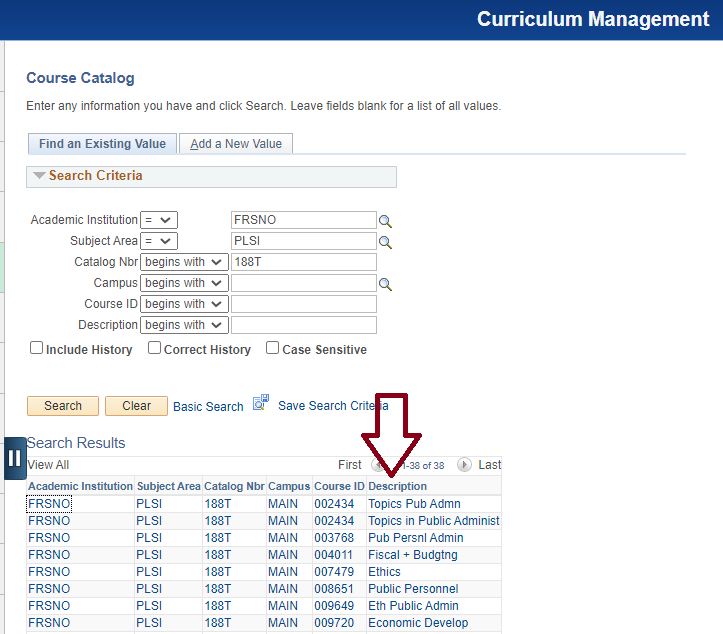
a. Pull up the specific Subject and Catalog No (e.g., PLSI 188T). There will be a
list of these courses. The courses are listed in numeric order by Course ID. You can
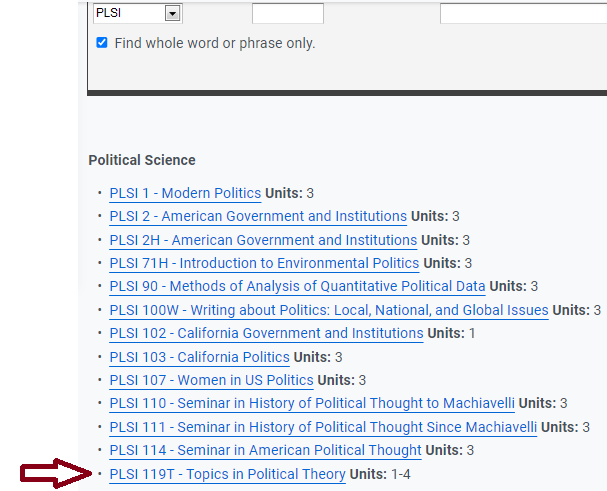
sort alpha by selecting Description. In the example below the parent course is at
the top because it is the oldest Course ID. If there are many courses and you have
the title, select Description drop down and select contains and type a word(s) from
the title and search. The Description is the short title of the course, so words may
be abbreviated.
b. If the parent course is not obvious, go to the online General Catalog to find the parent title. The parent Topic courses are listed in the catalog. The
child Topic courses are not listed in the catalog.
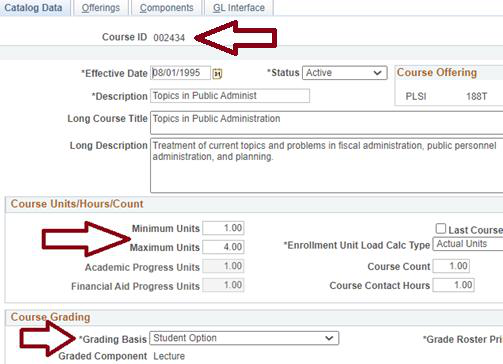
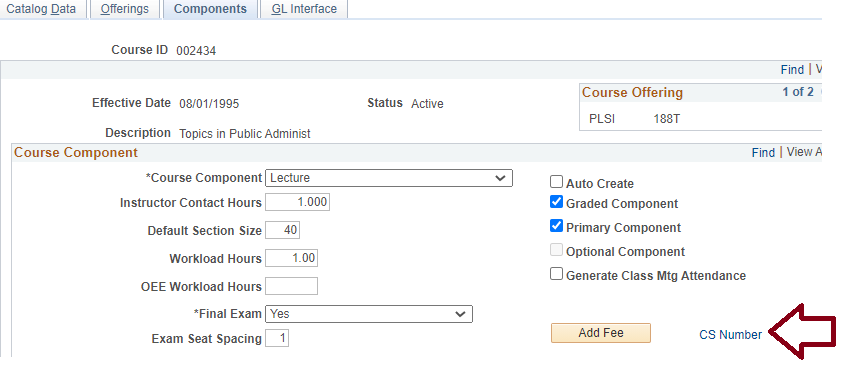
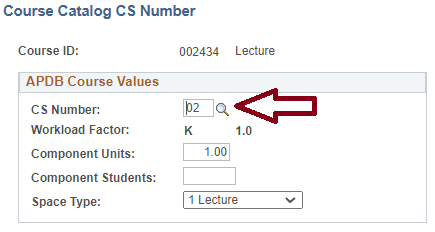
3. Finding the Topic parent units, grading basis, and CS#. The units and grading basis
are on the Catalog Data tab. Note the Course ID.
The CS# is on the Components tab.
Independent Study – Course No’s 190 and 290
1. All sections should be set to either Department or Instructor Consent
2. Most Independent Study courses are variable units. The Min/Max units for each section
need to be set in Curriculum Management > Adjust Class Association
3. Students can complete an Independent Study Form. The from can be found on the Registrar’s
Office website Forms
Reports
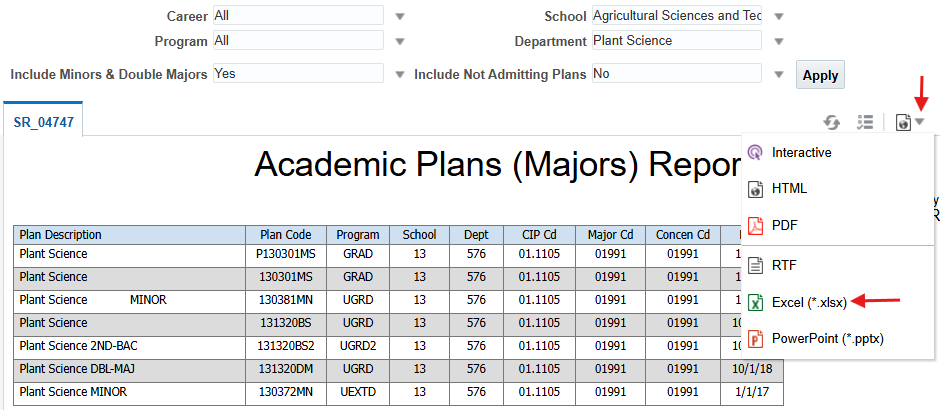
Academic Plans (Majors) Report
This report gives all active and inactive (Not Admitting Plans*) academic major plan codes for a department.
Path: Reports Portfolio > Student Administration > Course Scheduling / Curriculum > Academic Plans (Majors) Report
Select the areas that pertain to what is needed, e.g., Career: Undergrad or Postbac or All. The report can be downloaded to Excel.
SOC Print Proof – Class Notes
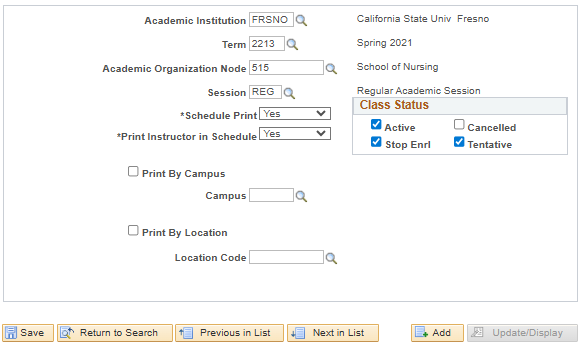
The SOC Print Proof is used to check which Class Notes are currently in place for the department’s classes.
Path: Reports Portfolio > Student Administration > Course Scheduling / Curriculum > SOC Print Proof
1. Enter Run Control ID
2. Enter Term: > Academic Org: >
3. Class Status: check the boxes of the class status to review
4. Select Run > Select SOC Print Proof > Type: Web > Format: PDF > Select OK
5. Select Report Manager > Select Refresh > Select Details when complete > Select the PDF file
Class Schedule Efficiency Analysis
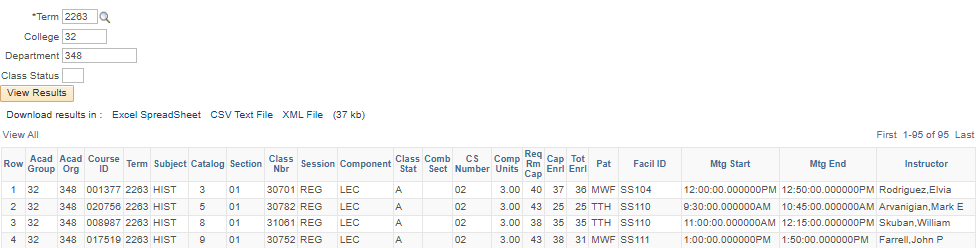
The Class Schedule Efficiency Analysis report shows a schedule of term classes that can be downloaded into Excel with a clean view unlike the Class Size Summary.
Path to run report - Reports Portfolio > Student Administration > Course Scheduling/Curriculum > Class Schedule Efficiency Analysis
1. Enter the Term; College; and Department
2. Class Status can be left blank to show all or enter the status; A=Active, T=Tentative,
S=Stop Further Enrollment, or X=Cancelled
3. Select View Results
4. Download the report to Excel
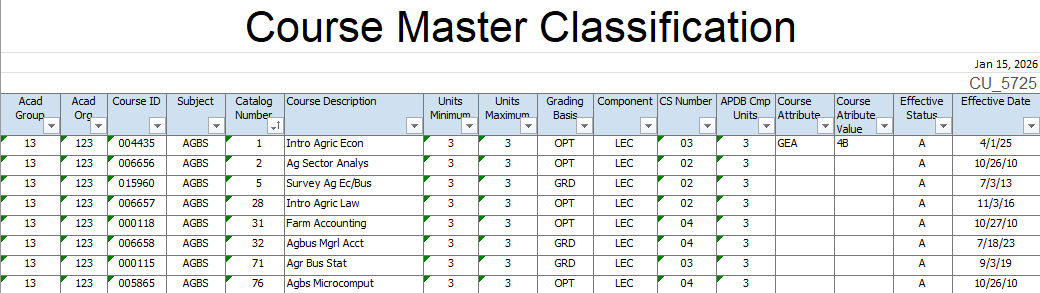
Course Master Classification
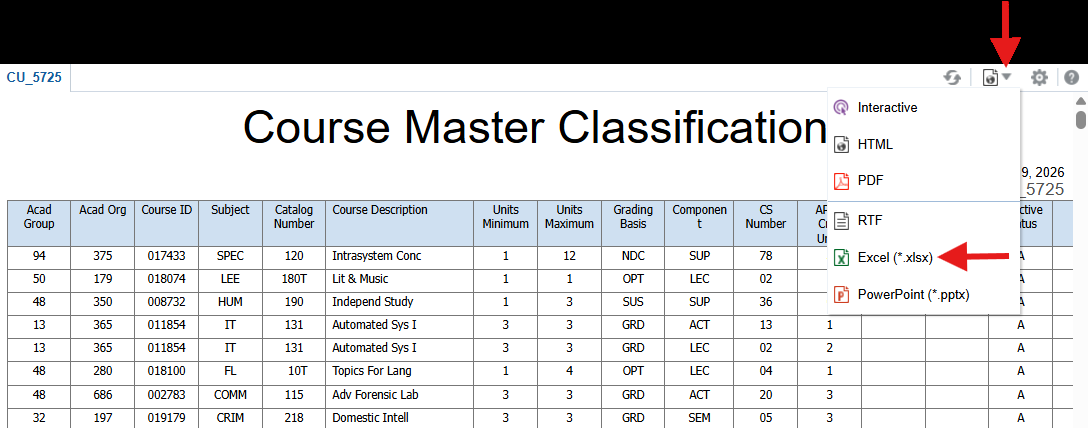
The Course Master Classification report shows all active department courses with all components of the course.
Path to run report – Reports Portfolio > Student Administration > Course Scheduling/Curriculum > Course Master Classification
1. This report runs for all departments. Download the report to Excel under the View Report drop-down. In Excel, filter to the department needed using the Acad Org.
2. Excel – filter by department.
a. Select the column titles; select Sort & Filter > Filter
b. Select the Acad Org filter; deselect (Select All) and select the Acad Org needed.
c. Select Ctrl + A to copy and paste into a new sheet. Paste with “Keep Source Column
Widths”.
d. Filter and Sort by Catalog Number or in any way you would like. If there are multiple
subjects in the same Acad Org, Sort by Subject then Catalog Number.
Courses Taught Report
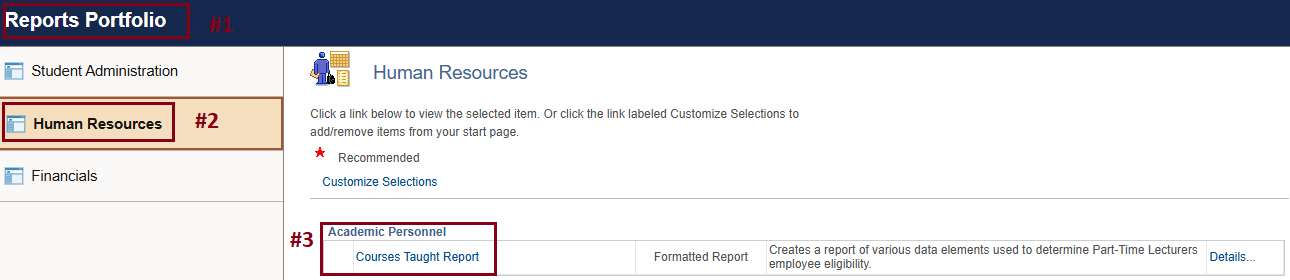
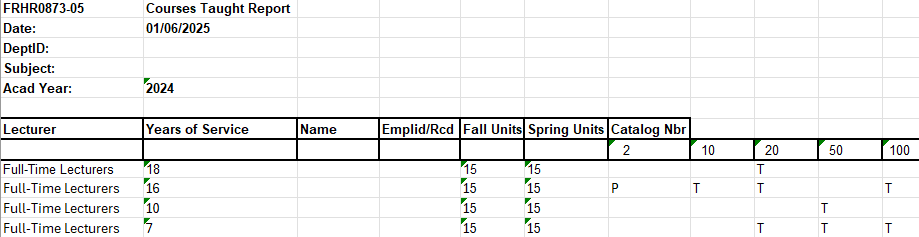
This creates a report of various data elements used to determine Part-Time Lecturers employee eligibility. Follow the steps below to run the Courses Taught Report.
1. Reports Portfolio
2. Human Resources
3. Academic Personnel > Courses Taught Report
4. Enter the HR Dept ID and Academic Year, select Save
5. Select Run – Type: Web and Format: CSV (Excel) Ok
6. Select Report Manager
7. Select Refresh (the report may take longer than expected) until Details appear
8. Select Details > Select the xls extension file
If there are multiple Subjects in a Dept ID there will be a sheet for each Subject in the Excel spreadsheet.
Class Faculty Budget Report
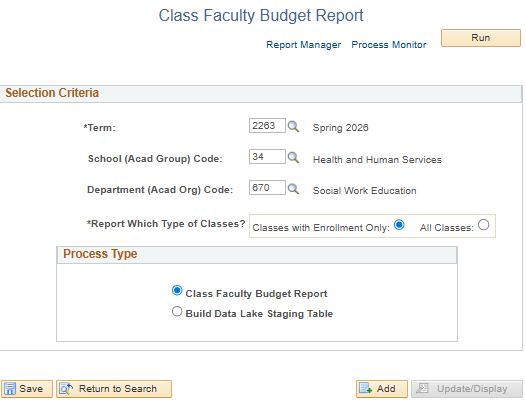
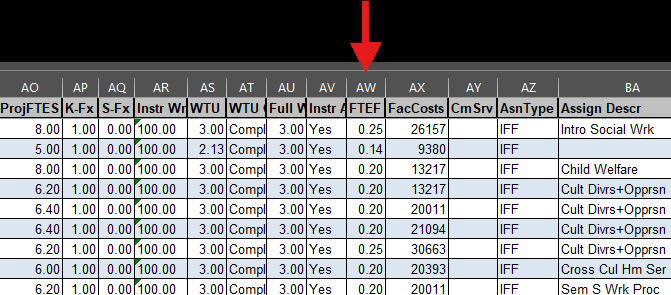
The Class Faculty Budget Report shows several helpful columns that the Department Chair may find useful including the FTEF column.
Path: Reports Portfolio > Student Administration > Course Scheduling / Curriculum > Class Faculty Budget Report
This HTML version was generated with AI assistance and may contain errors or omissions. The original approved PDF remains the official document of record. An alternative accessible format is available upon request from the document creator in accordance with Title II of the ADA.