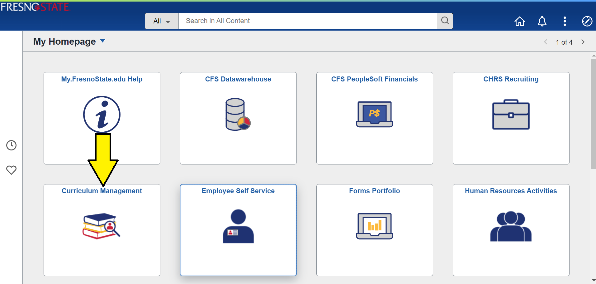
From Fluid Home Page Click on Curriculum Management > Instructor/Advisor Table
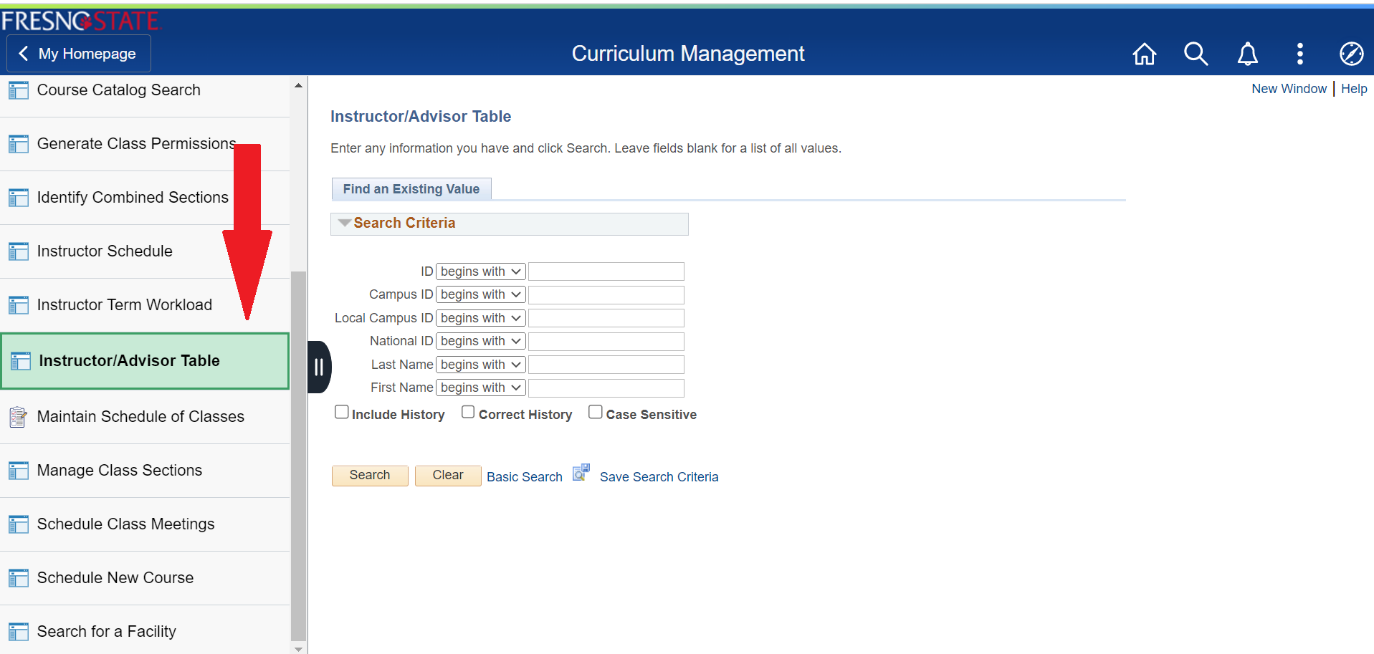
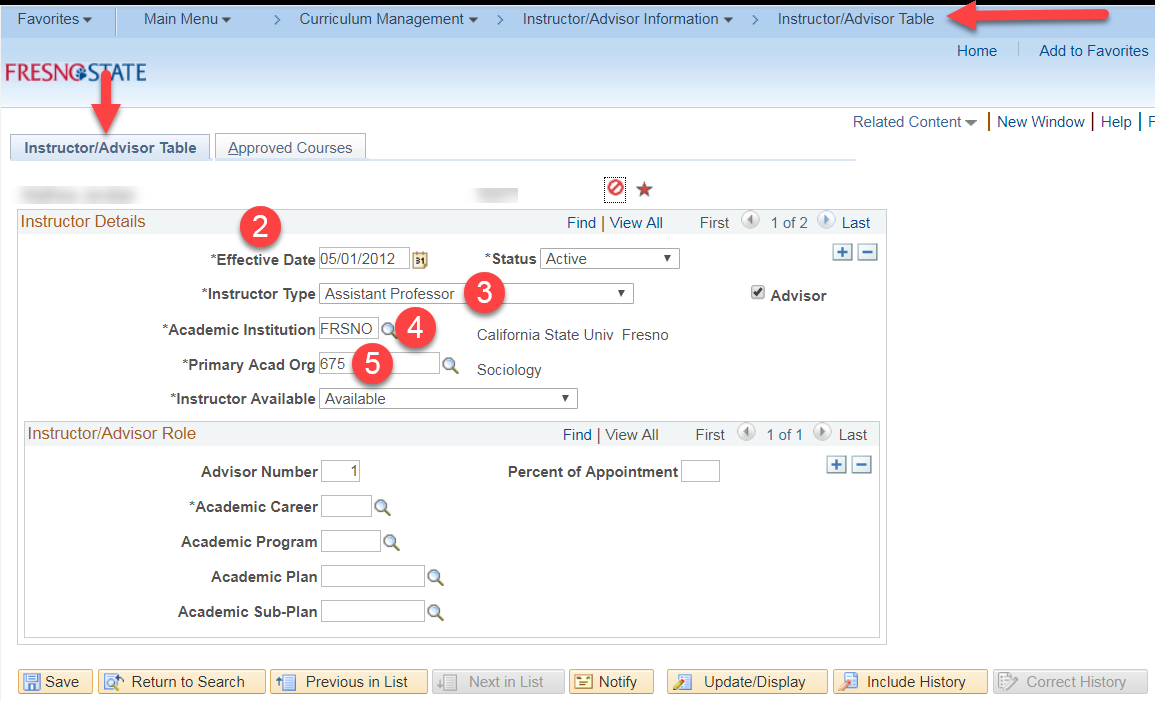
INSTRUCTOR/ADVISOR TABLE: PeopleSoft Fields listed below have to be updated or verified
FIELD
Instructor/Advisor Table Tab
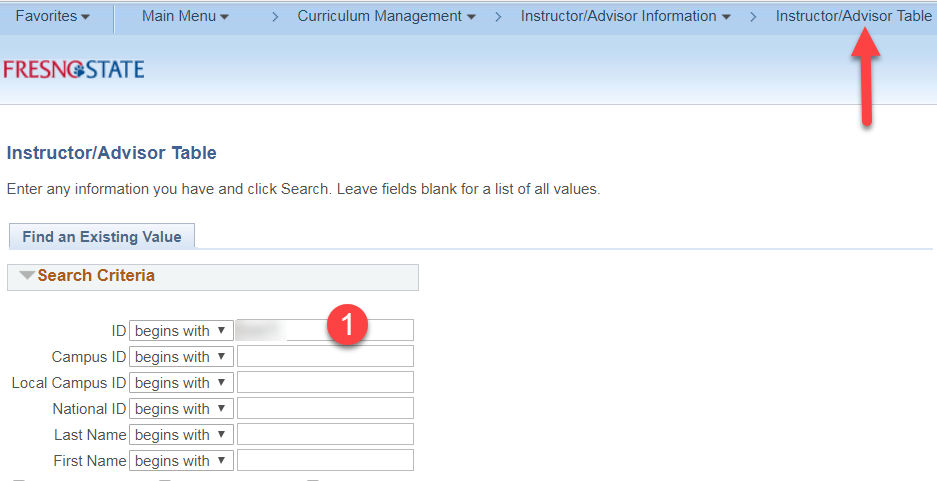
1) Instructor ID Number Enter the instructor’s Fresno State ID number and click on
“search;” or search by first name and last name.
2) Effective Date For a new instructor, the Effective Date has to be on or before
the first day of the semester in which the instructor will be teaching.
3) Instructor Type Select the appropriate value. If you’re not sure, check with your
dean’s office, department chair or with Faculty Affairs: facultyaffairs@mail.fresnostate.edu
4) Institution This is always “FRSNO.”
5) Primary Academic Org Enter your three-digit department code here. This will determine
to which department’s FAD this instructor will be attached.
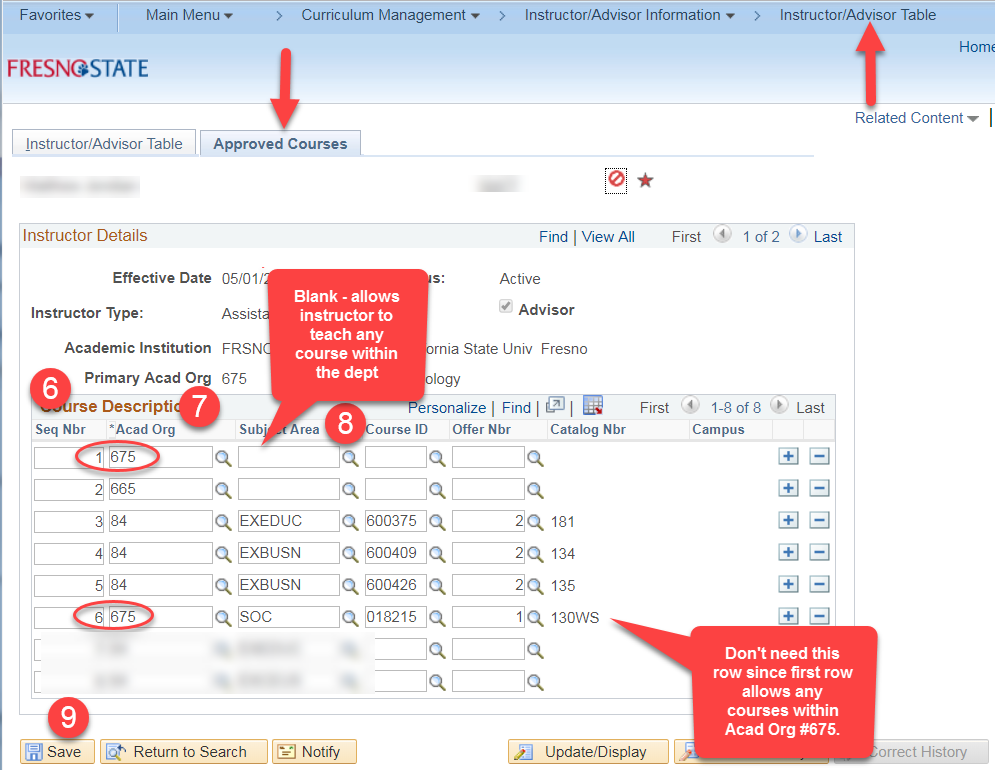
Approved Courses Tab
6) Seq Nbr This box will auto-populate with each new row you add.
7) Acad Org Enter the correct three-digit department code for the Subject Area being
taught. An instructor may have more than one Academic Org for which they are teaching
classes. If an instructor can teach any course within a department, only enter the
department code.
If an instructor is limited to teaching specific classes within a department, you
must set the Subject, Course ID and Offer Nbr for each of those courses.
8) Subject Area, Course ID & Offer Number Enter the prefix for the Subject Area and
tab over. Enter the course ID#, tab over and the Offer Nbr and Catalog Nbr will auto-populate.
9) CLICK ON SAVE ** SCREENSHOTS NEXT 2 SLIDES **

INSTRUCTOR TERM WORKLOAD: PeopleSoft Fields listed below have to be updated or verified
WORKLOAD ASSIGNMENT TAB
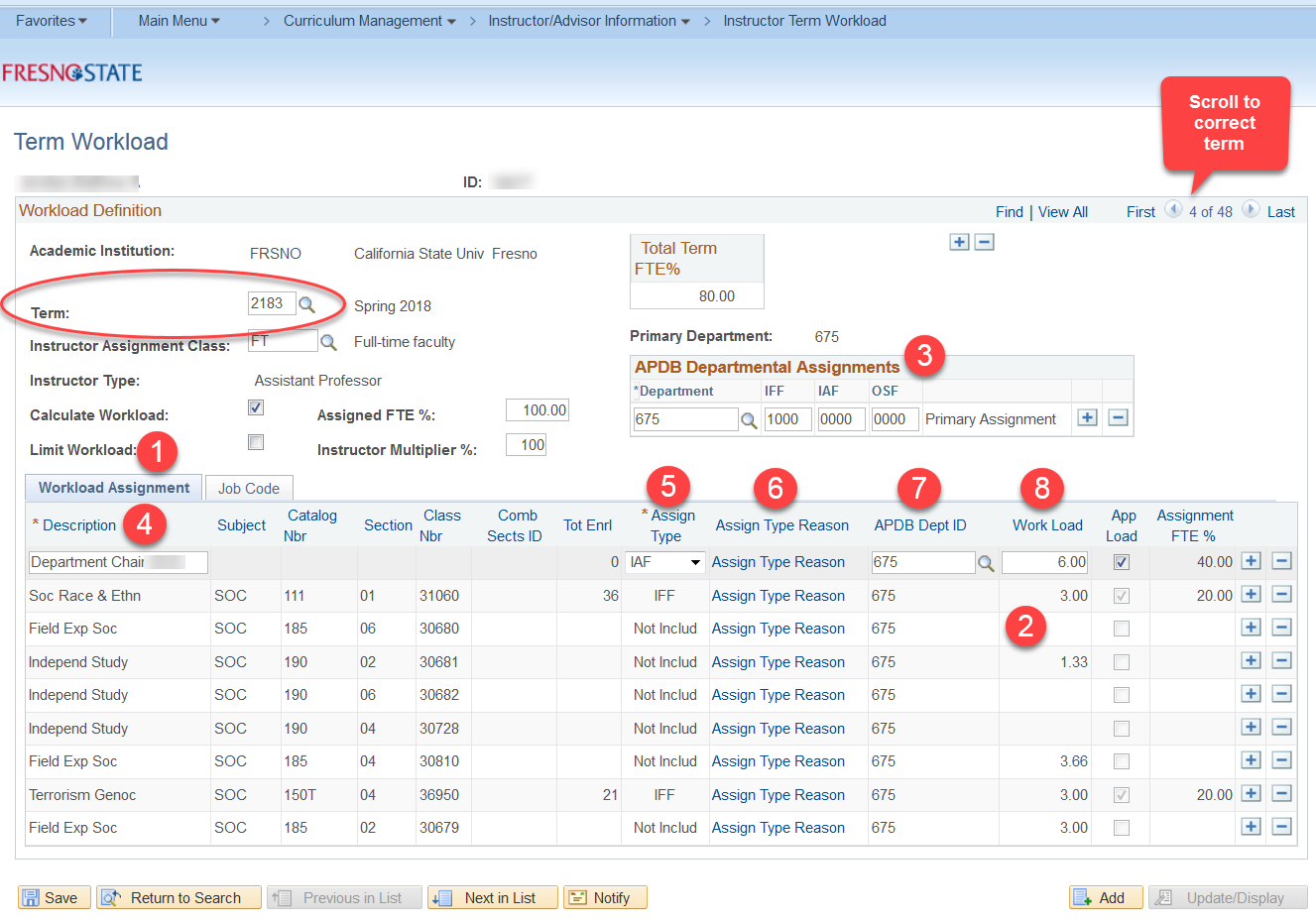
Scroll to the correct term by using the arrows in the blue Workload Definition header.
1) Work Assignment Tab This should reflect what the instructor is teaching or other
applicable work assignments. Verify all the instructor’s classes for the semester
are listed.
2) Work Load Column An instructor’s workload can be incorrect if the instructor EMPLID
was changed on the Meetings tab of Maintain Schedule of Classes, rather than the row
being deleted and a new row being added.
3) APDB Departmental Assignments DO NOT ENTER anything in the box marked “APDB Departmental
Assignments.” This area will be completed in the Scheduling Office.
For Assigned Time fill in the items below.
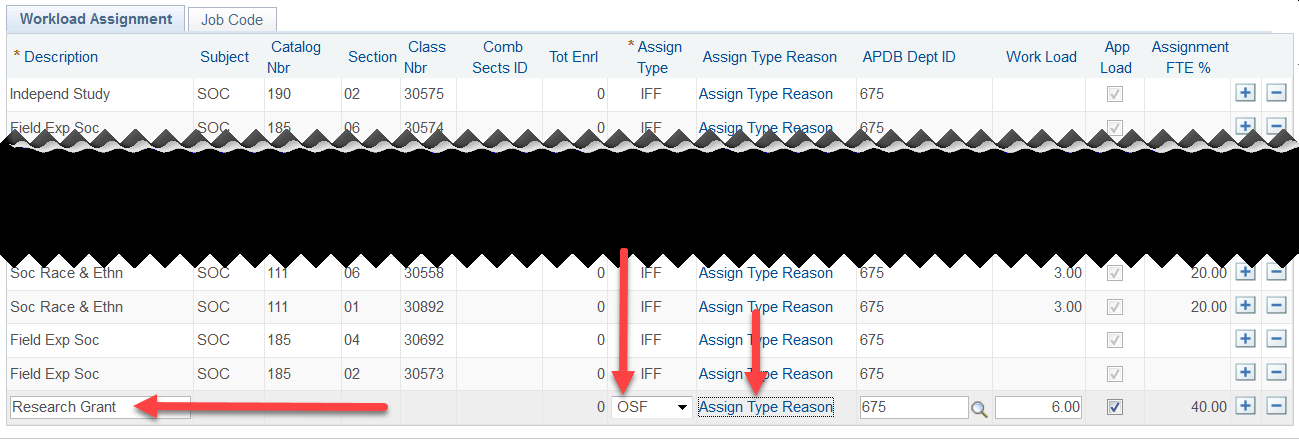
4) Description Type a brief description indicating what the faculty is receiving Assigned
Time for (see your Assign Time Code list for codes and descriptions).
5) Assigned Type Choose the correct Assign Type from the drop-down menu (see Assign
Type Worksheet sent).
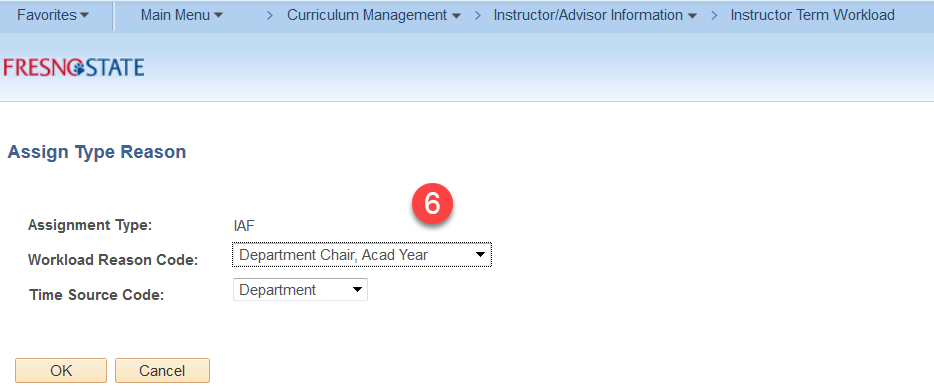
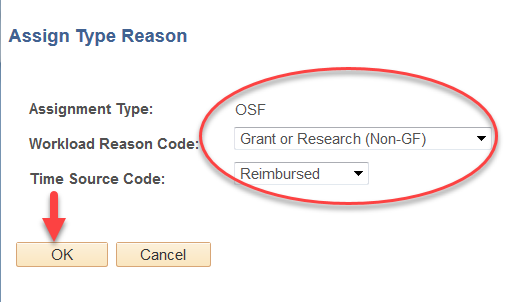
6) Assigned Type Reason Click on the “Assign Type Reason” link to choose the reason
the instructor is receiving Assign Time. This is a MUST for IAF and OSF Assign Time.
7) APDB Dept ID This must be entered. Choose the corresponding Academic Organization
number for each class being taught or for the dept from where the Assign Time is being
paid.
8) Workload WTUs must be entered for Assign Time. For classes taught, usually the
Workload will auto-populate based on the information in the Meetings tab in Maintain
Schedule of Classes.
Verify the correct active job record is displayed for this semester.
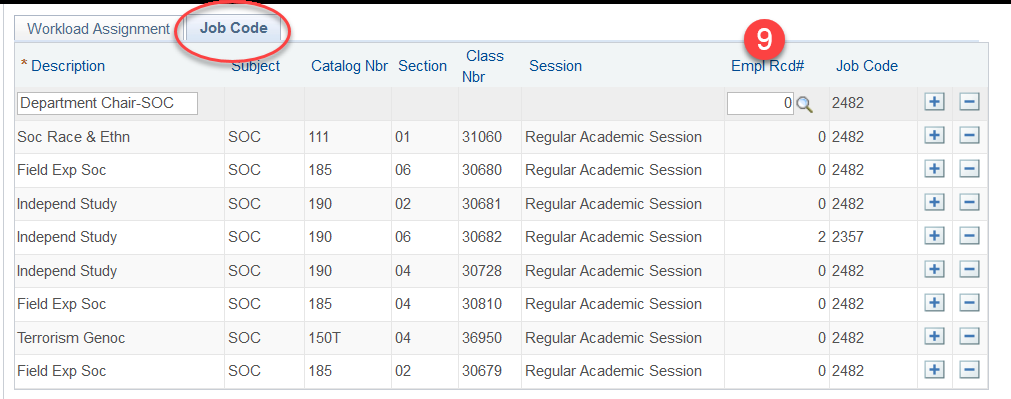
9) Empl Rcrd # When adding Assign Time, update Job Record to current active job record
number if different than zero (will default to 0). For classes, the number will auto-populate
from information in the Meetings tab in Maintain Schedule of Classes and incorrect
numbers have to be corrected there.
SCREENSHOTS NEXT 2 SLIDES
JOB CODE TAB

Using OSF (Other Support Fraction) as the “Assign Type” for Assigned Time
Any assignment for which a department receives funding or backfill should be coded
as an Assign Type of OSF. In the “Description” box, you need to identify the source*
of funding from the following list:
OSF Assign Time Workload Reason Code Time Source Code
Provost – state side GF – non-instructional/backfill University
Provost - foundation Grant or Research (Non GF) Reimbursed
Dean – foundation Teaching (Non GF) Reimbursed
Grant/contract Grant & Research (Non GF) Reimbursed
*If there are multiple sources of funding for OSF, then additional rows should be
added for each source and the wtu distributed accordingly.
SCREENSHOTS NEXT SLIDE
HOW TO REVIEW YOUR FAD:
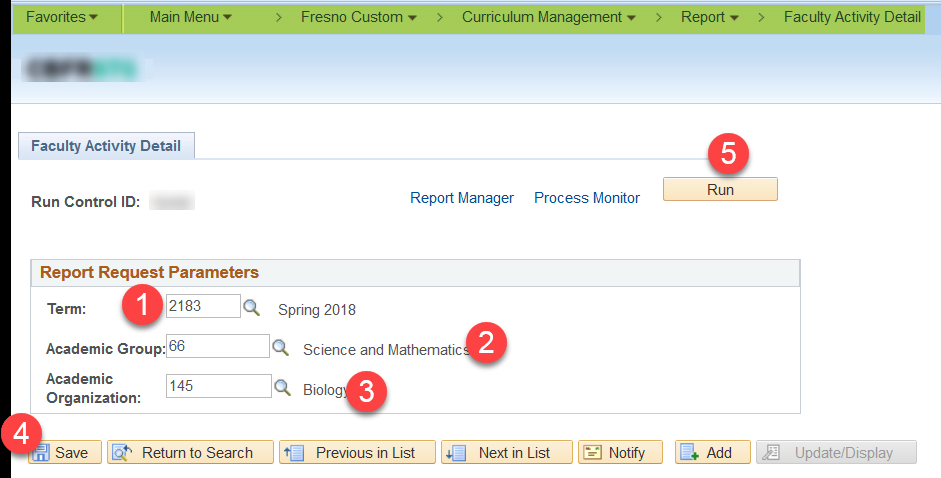
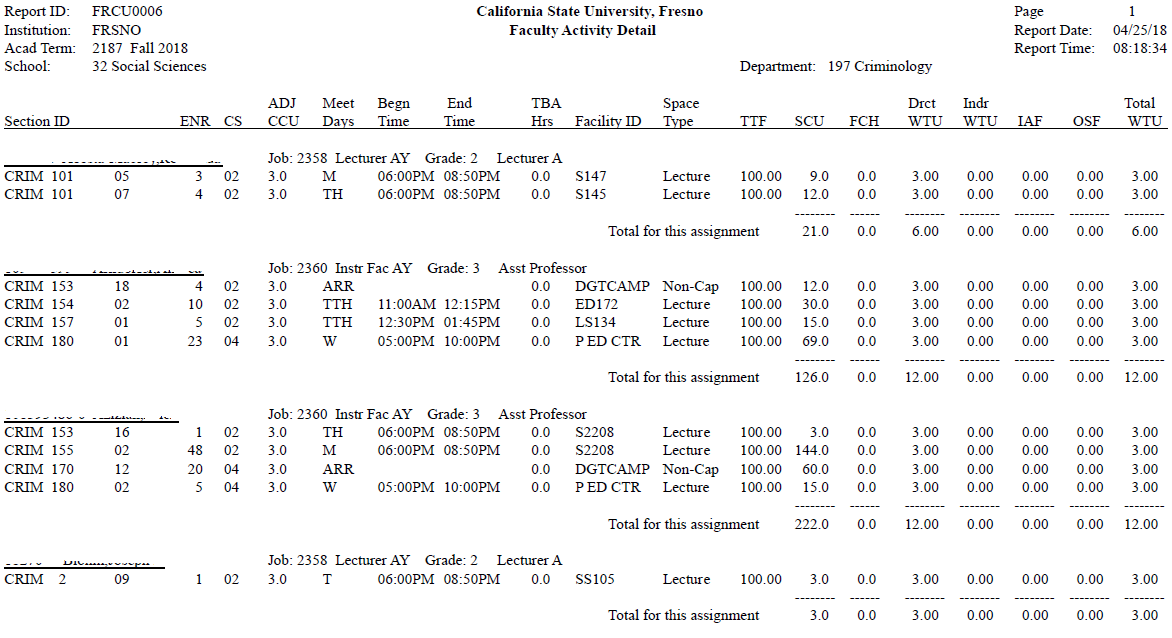
- Run your FAD Report Run your FAD report by first filling in the appropriate Report Request Parameters: Term, Academic Group (2-digit college number), and Academic Organization (3-digit department number). Pathway: REPORTS PORTFOLIO > STUDENT ADMINISTRATION > COURSE SCHEDULING/CURRICULUM > FACULTY ACTIVITY DETAIL
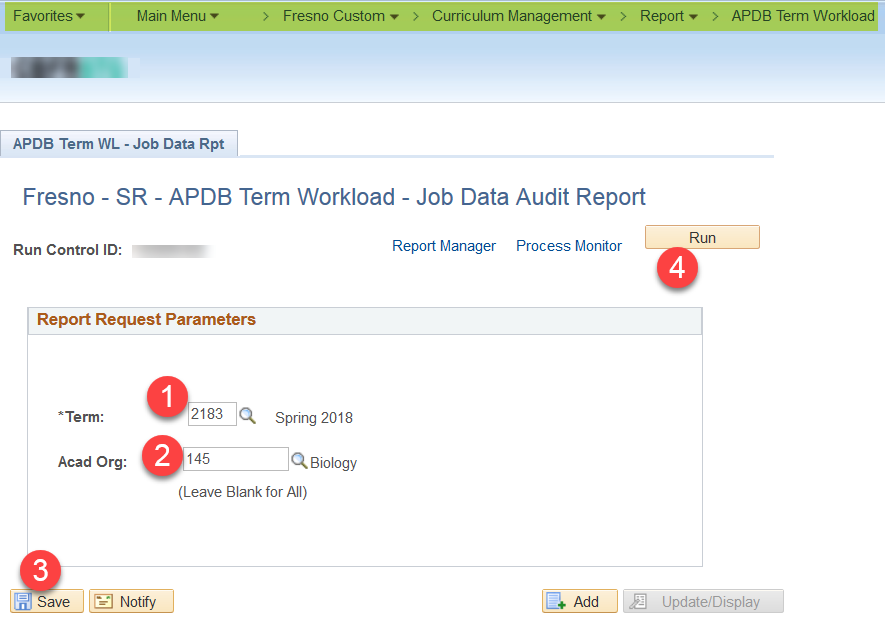
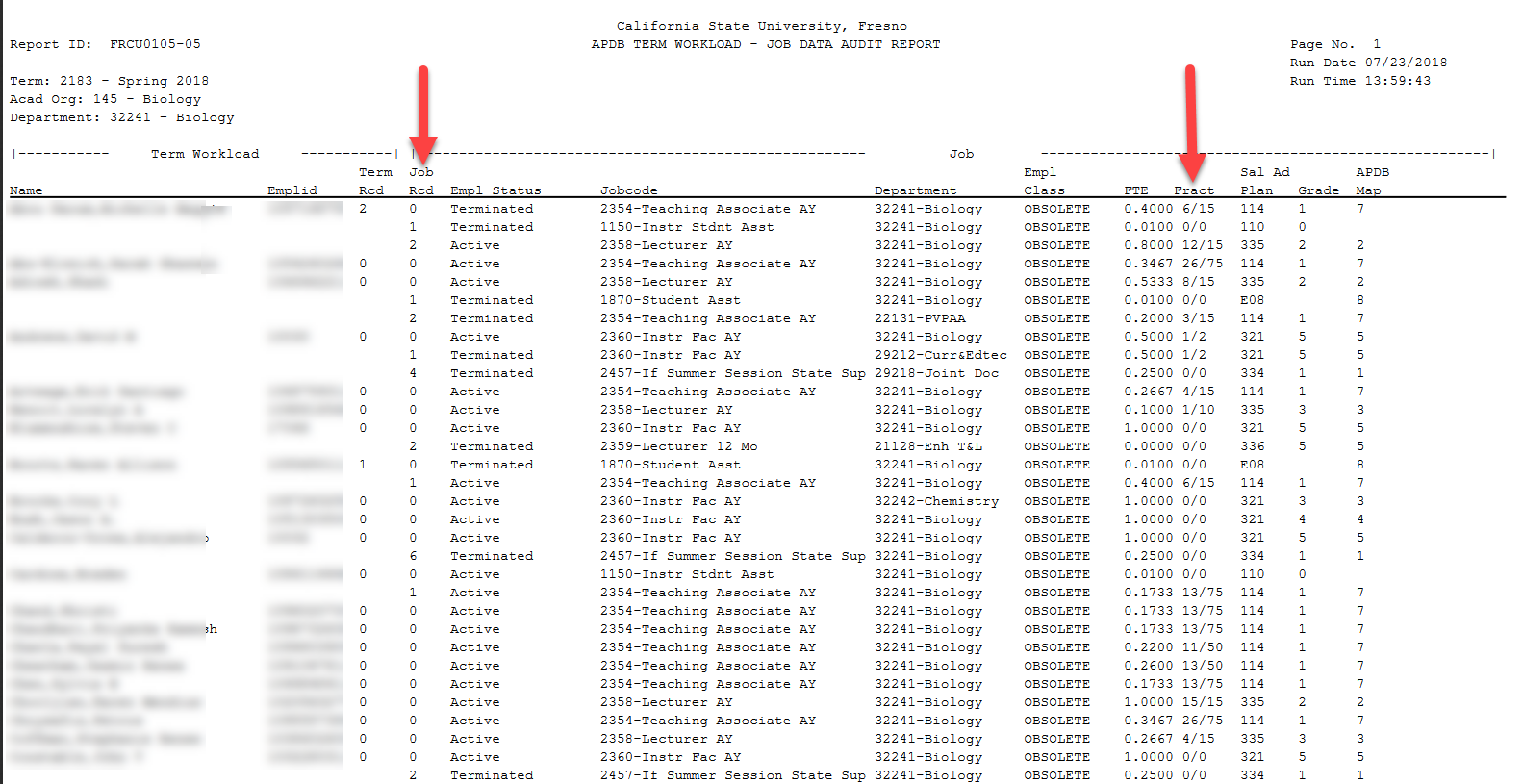
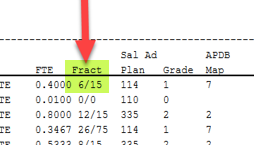
- Run Job Data Audit Report Run the APDB Term Workload-Job Data Audit report. You will use this report to assist you with the review of your FAD report. Pathway: REPORTS PORTFOLIO > STUDENT ADMINISTRATION > COURSE SCHEDULING/CURRICULUM > APDB TERM WL-JOB DATA RPT
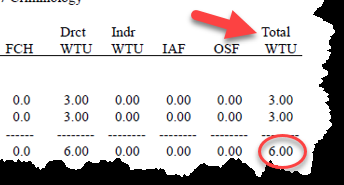
- Review Each Instructor For each instructor in your FAD, verify WTUs. The total WTUs in the FAD report should match up with the contracted “Fract” on the APDB Term Workload-Job Data Audit report.
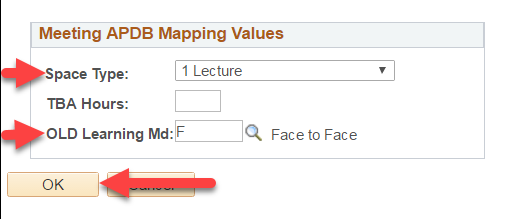
- Discrepancies A common issue is 0.00 WTU showing for a faculty. In these cases, most likely the Meeting APDB Mapping Values are missing or incorrect. Space type must correspond with the class component. Example: Lecture = Space Type 1 Lecture. OLD Learning Md: = F for face-to-face.
- A, F, and S Matter! If the Learning Mode is left blank in the Meeting APDB Mapping
Values, the WTU for the faculty teaching that class will show up as 0.00.
A = Asynchronous instruction -used only for fully-online classes with no scheduled meeting times
F = Face-to-face instruction –used for classes meeting face-to-face only or face-to-face/online
S = Synchronous instruction – used for online classes with scheduled meeting times - Empl Rec # Compare the Empl Rec # listed for a faculty in Maintain Schedule of Classes to the Term Workload-Job Data Audit report. The Empl Rec # should correspond to the correct active Job Rcd in the Term Workload-Job Data Audit report.
- Discrepancies An instructor may have more than one active Job Rcd if he is teaching in more than one department. In this case, make sure the correct active Job Rcd and department correspond with the correct Empl Rec #.
- Making corrections You can make corrections to the Empl Rcd # in Maintain Schedule of Classes in the Meetings Pattern tab. Under “Instructors for Meeting Pattern” click on the magnifying glass by the Empl Rcd # box and you will see the active Empl Rcd number(s) for which this instructor is actively contracted.
SCREENSHOTS NEXT 6 SLIDES



The Basics of CS #s – Course Classification Numbers
Determining Workload
The contact hours for each CS # can be found on the Course Classification Number Chart
along with the corresponding K factor. The chart also includes a description of different
CS numbers.
CS#s determine workload, so this is a data element that must go through the curriculum
approval process. The CS# in the APDB Class Section Values should always match what’s
in the catalog for that course.
SCREENSHOTS NEXT SLIDE
FLUID NAVIGATION > CURRICULUM MANAGEMENT > MAINTAIN SCHEDULE OF CLASSES

Other Helpful Information
Adding/Changing Instructors:
(Maintain Schedule of Classes > Meetings tab > Instructors for Meeting Pattern)
• When changing the instructor for a class, DO NOT “write over” the existing instructor’s
information on the Meetings Tab in Maintain Schedule of Classes
• Changing the instructor this way can create a “ghost” of the former instructor’s
information and can create errors in your FAD
• Delete (-) the row for the existing instructor
• Add (+) a row for the new instructor; add their information and SAVE
This is also where you would add additional instructors.
Where to find the CS#, course component(s), grading basis, K or S factor and Unit Value for a course:
FLUID NAVIGATION > CURRICULUM MANAGEMENT > COURSE CATALOG
SCREENSHOTS NEXT SLIDES
Financial Aid Units Review
UGRD = 1 x # of Units
PBAC = 1.5 x # of Units
DOCT = 2 x # of Units
FLUID NAVIGATION > CURRICULUM MANAGEMENT > ADJUST CLASS ASSOCIATIONS
This HTML version was generated with AI assistance and may contain errors or omissions. The original approved PDF remains the official document of record. An alternative accessible format is available upon request from the document creator in accordance with Title II of the ADA.