Kuali Research Committee for the Protection of Human Subjects (CPHS) Guide for Creating, Reviewing, and Managing IRB Protocols
Kuali Research
California State University, Fresno
Committee for the Protection of Human Subjects (CPHS)
Guide for Creating, Reviewing, and Managing IRB Protocols
Last Update September 2023
Table of Contents:
- Logging In (Page 2)
- Creating a New Protocol (Pages 3-5)
- Searching for Protocols (Page 6)
- Reviewing a Protocol Assigned to You (Pages 7-10)
- Completing Requested Revisions as the Researcher (Pages 11-13)
- Departmental Review of Revisions Made by the Researcher (Page 14)
- Submitting a Protocol Amendment on an Approved Protocol (Page 15)
- Submitting a Protocol Renewal on an Approved Protocol (Page 16)
- Requesting to Close an Approved Protocol (Page 17)
- Assigning a Protocol for Departmental/Unit IRB Review – For IRB Chairs (Pages 18-19)
- Approving a Protocol - For IRB Chairs (Pages 20-22)
- Requesting Revisions from a Principal Investigator – For IRB Chairs (Pages 23-24)

Creating, Reviewing, and Managing Protocols
California State University, Fresno
Logging In
Step No. Instructions
1 Navigate to: https://csufresno.kuali.co/protocols/new?protocolType=IRB
2 Enter your Fresno State email credentials.
Username: <enter your username>
Password: <enter your password>
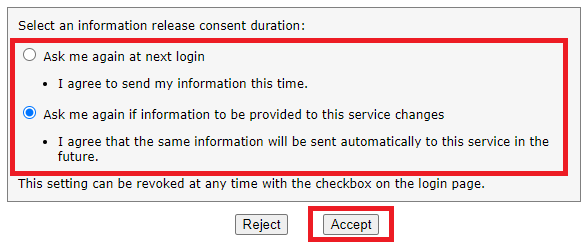
3 Select an information release consent option, as shown below.

Creating, Reviewing, and Managing Protocols
California State University, Fresno
Creating a New Protocol
*Note: Protocols of all risk levels – exempt, minimal risk, or at risk – must be submitted through Kuali.
Step No. Instructions
1 From the Manage Protocols screen:
Click the button and select IRB from the dropdown menu.
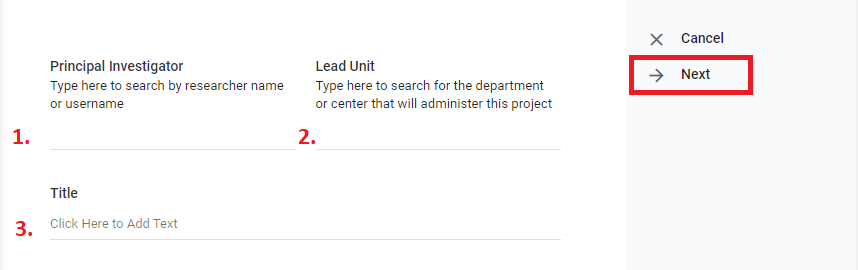
2 The Kuali Research Protocol document will open. Complete the information as indicated below:
- 1. Principal Investigator: Must be Fresno State faculty or staff member. In cases of student research, students should list their faculty advisory as the PI, and must select "Full Access" rights for the faculty member to access, review, and submit the protocol.
- 2. Lead Unit: The department or unit that will review the protocol. This should autofill but if it does not, you may manually enter your department. If you are under Jordan College and your department does not have a Department IRB Committee, please select “College of Ag Sciences & Tech.”
- 3. Title: The title of your proposal.
Click the Next button in the upper right-side corner of the screen.
3 The General Questionnaire will open.
- Is your protocol funded? Select Yes or No.
- At the bottom of the page, indicate whether your protocol is “exempt”, “minimal risk”, or “at risk”.
Click the Next button in the right-side menu to proceed. The full protocol will open. Complete the fields as appropriate to your protocol.


Creating, Reviewing, and Managing Protocols
California State University, Fresno
All researchers are required to submit an up-to-date CITI certificate.
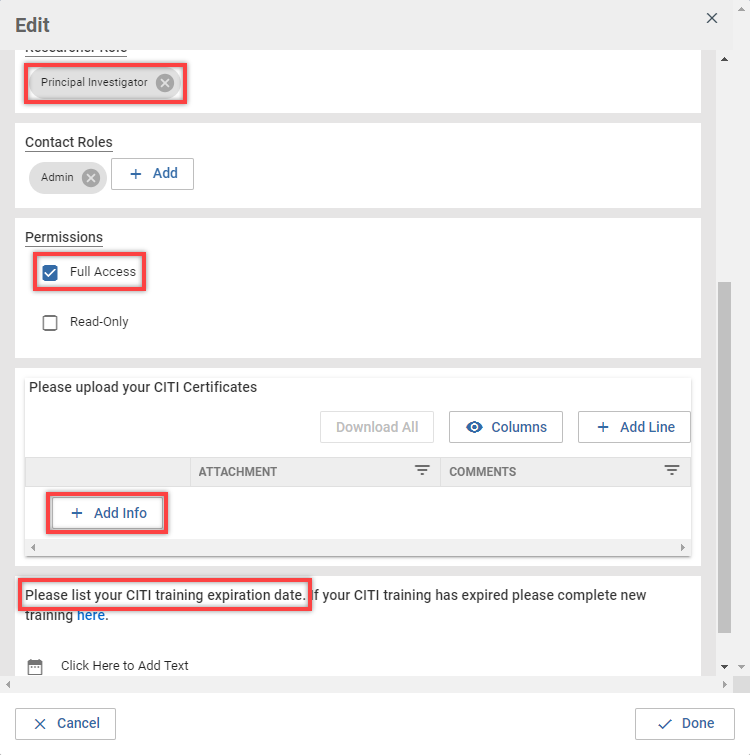
The PI CITI certificate can be attached as shown below by clicking the in the “CSU Fresno Personnel” section in the “Personnel” area. A popup window opens where a CITI certificate can be attached by scrolling down and clicking the Add Info button.
Add the expiration date of the CITI certificate in the bottom of the window.
If you are a student inputting the protocol, be sure that your faculty is shown as the PI and select the Full Access check box for that person in the “Permissions” area.
Once all necessary fields have been completed, click the Done button in the bottom right corner of the popup window.
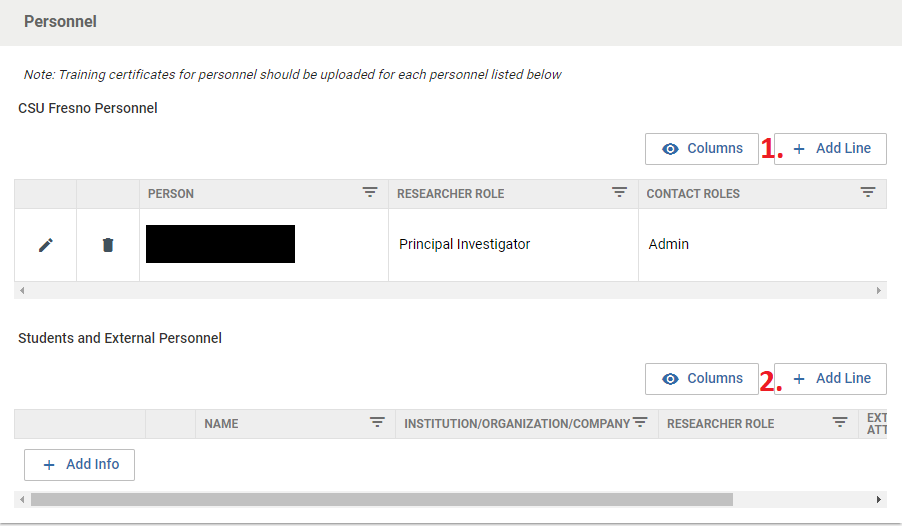
If there are additional investigators, they can be added by clicking the Add Line button:
- Other CSU Fresno Personnel (Faculty/Staff)
- Students and External Investigators (If you are a student, please list yourself in this section and your faculty advisor as the Principal Investigator. Once the protocol is complete, take the "Notify PI to Submit" action.)


Creating, Reviewing, and Managing Protocols
California State University, Fresno
Enter their information in the popup window fields, upload their CITI certificates, and enter their CITI certificate expiration dates as shown previously. There cannot be more than one “Principal Investigator” role so please use either the “Co-Investigator” or “Key Person” options under “Researcher Role.”

Creating, Reviewing, and Managing Protocols
California State University, Fresno
Searching for Protocols
Step No. Instructions
1 From the Protocols screen:
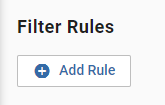
- Click the Manage Protocols option on the left-side menu and click the button at the top of the screen next to the search bar. Ensure that there are no Filter Rules set as shown below.
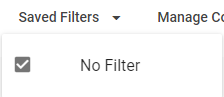
- If you are having trouble seeing your protocols, then select No Filter in the Saved Filters dropdown.
2 In the displayed search results:
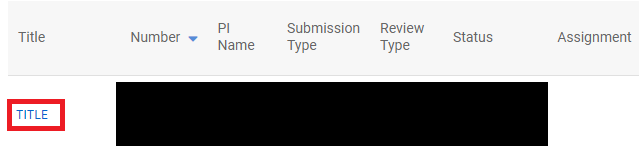
- Click the Title of one of the protocols to open it.


Creating, Reviewing, and Managing Protocols
California State University, Fresno
Reviewing a Protocol Assigned to You
Step No. Instructions
1 From the Protocols home page, click the button on the left-side menu.
All protocols assigned to you as a reviewer will appear.
2 Find and click on the title of the protocol in need of review.
- Scroll through the protocol to review sections.
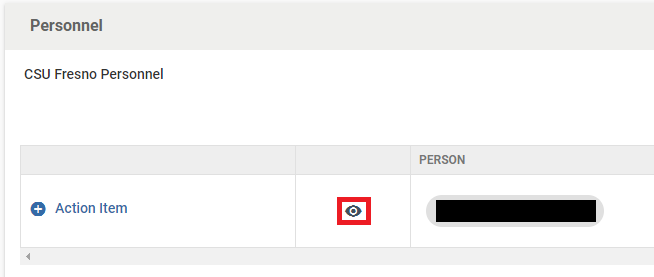
- You can view the PI’s CITI certificate by clicking on the button as shown below.
- View and/or download research attachments for review. (Only PDF files are viewable in Kuali; all other attachments will need to be downloaded for review.)



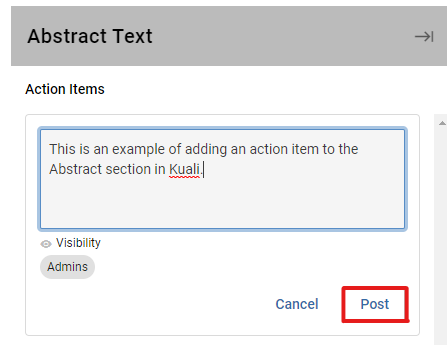
If necessary, you can make comments on protocol sections for the PI. Click the button, enter your comment, and select who should have access to the comment (assigned reviewers, researchers, or admins).* All Action Items will remain anonymous to everyone except the Department IRB Chair (even when the Chair is the PI).
- Click Post at the bottom of the Action Item comment as shown in the image below.


Creating, Reviewing, and Managing Protocols
California State University, Fresno
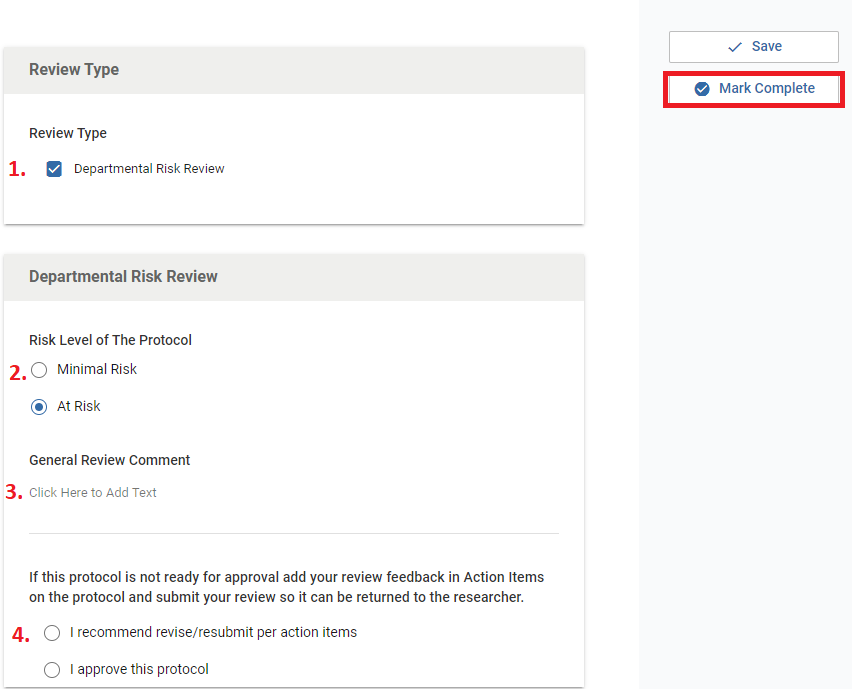
Complete the following four fields in the Checklist:
- Review Type (The following questions will not show up until this box is checked.)
- Risk Level (For information about risk level please consult materials found on the CPHS webpage.)
- Any General Review Comments you have for the Department IRB Chair regarding requested revisions. Please read and answer all questions carefully, as this process cannot be undone once submitted.
- If the initial review is completed but the Chair still needs to be part of the revision
review process, make a General Review Comment to that effect, and select the option
“I recommend revise/resubmit per action items.” Do not mark as Complete. The chair
receives email notification of the review completion and in the Checklists tab the
review still shows as Pending.
OR
If the initial review is completed and the protocol is approved, select the “I approve this protocol” option and then click on in the right-side menu.


Creating, Reviewing, and Managing Protocols
California State University, Fresno
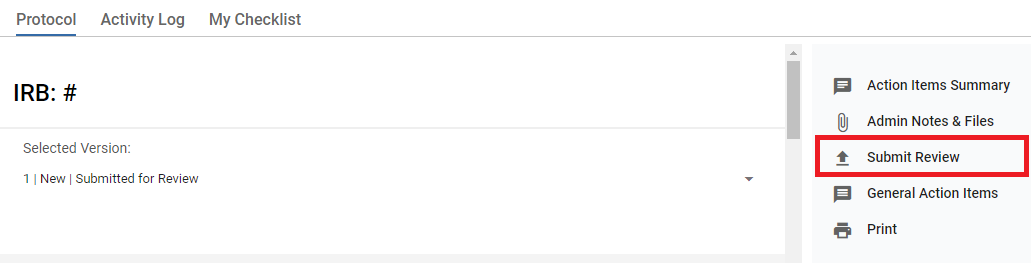
Click the Protocol tab to return to the protocol and click the Submit Review button. You may submit another Action Item in the form of a General Action Item prior to submission if there is anything you may not have mentioned in the Checklist comments. When your review is complete, you can then click Submit Review.

Creating, Reviewing, and Managing Protocols
California State University, Fresno
Completing Requested Revisions as the Researcher
Step No. Instructions
1 From the Manage Protocols screen:
Click on the title of your protocol, which should display Revisions In Progress in the status column.
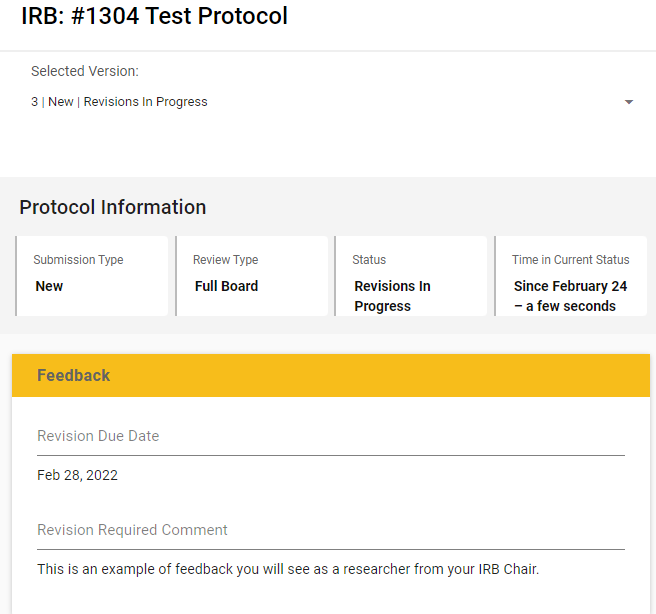
- General requested revisions should display at the top of the screen under the heading Feedback.
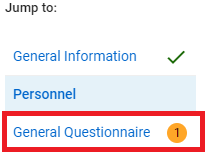
- Specific comments/requests can be found in each individual section by clicking the button found in the top right corner of each section. You can use the left-hand menu to see where action items have been posted. An action item posted in the General Questionnaire section would look as shown below.



Creating, Reviewing, and Managing Protocols
California State University, Fresno
2
- Scroll down to the protocol section that requires revision and make necessary changes.
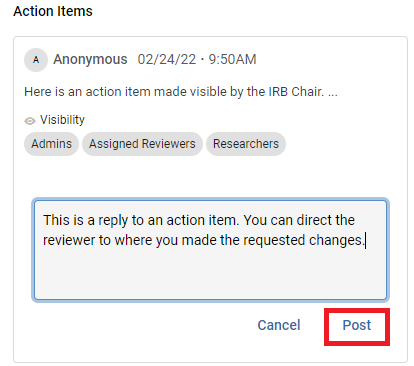
- By clicking on an button you can view an anonymous comment left by a reviewer. Click Reply to respond to an action item.
- Click Post at the bottom of the reply.
- Repeat these steps for all fields with an Action Item.
- Scroll through your protocol and review the changes you have made to the fields.
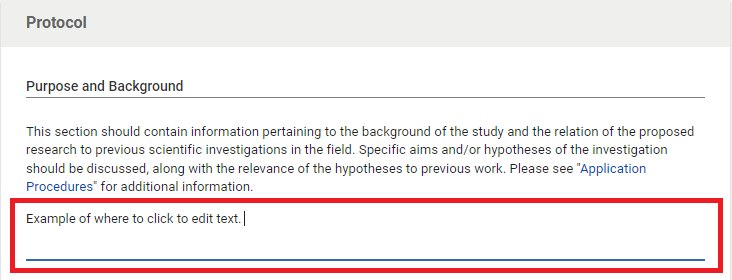
- Make any additional necessary changes. You can edit any section by clicking in the text box of that section.


Creating, Reviewing, and Managing Protocols
California State University, Fresno
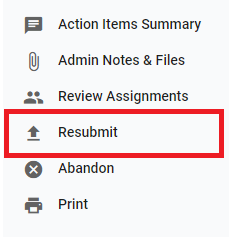
4 Click the Resubmit button on the right-side menu.

Creating, Reviewing, and Managing Protocols
California State University, Fresno
Reviewing Revisions Made by the Researcher as an Assigned Reviewer
Step No. Instructions
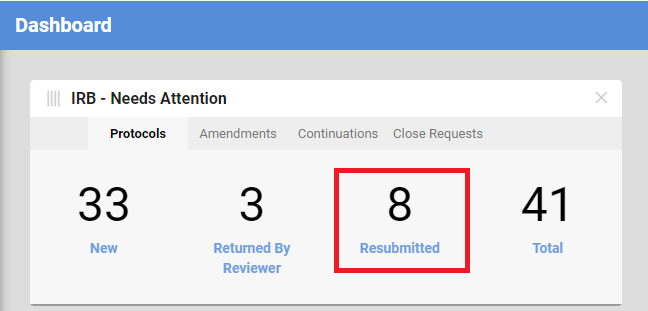
From the Dashboard click on Resubmitted on the IRB - Needs Attention gadget. Revised protocols should also display in the Protocols Assigned to Me list.
1
- Find the relevant protocol and click on the Title.
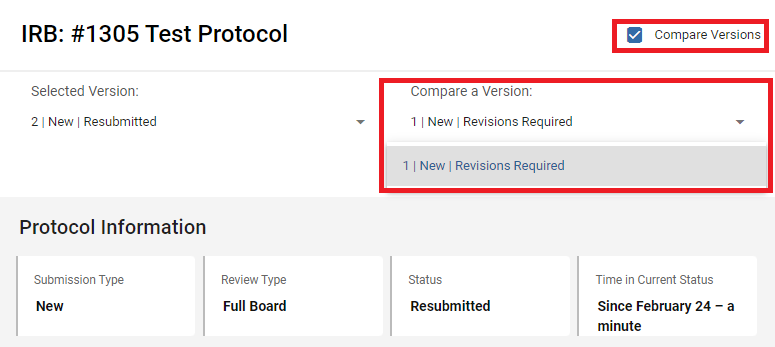
- Click on the Compare Versions box and scroll through the protocol to review the changes made by the researcher.
If additional revisions are required, type those in the relevant Action Item fields as you would while reviewing a protocol or submit a General Action Item in the right-side menu. Click the Submit Review button on the right-side menu to complete your review.

Creating, Reviewing, and Managing Protocols
California State University, Fresno
Submitting a Protocol Amendment on an Approved Protocol
Step No. Instructions
1 From the Manage Protocols tab search for and open your protocol.
*Note: For subsequent Amendments after the first, use Checklists.
2
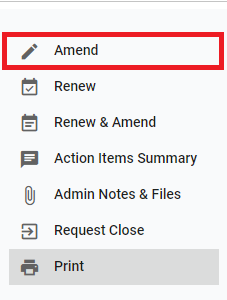
- Click the Amend button in the upper right-side corner of the screen.
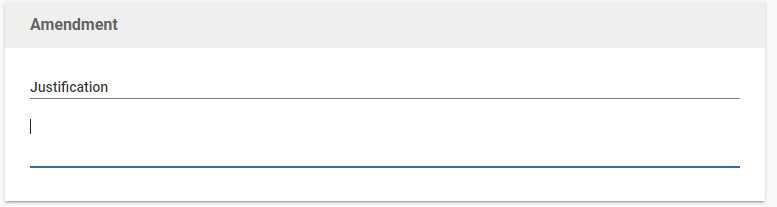
- Enter a justification for your amendment in the new “Amendment” section, which can be found by scrolling down or clicking Amendment in the left-side menu.
- To add study personnel, scroll down and select +Add Item on the person list and complete the person, department, and researcher role fields. Upload the CITI certificate for any added personnel and add their CITI certificate expiration date. Scroll down to the bottom of the dialog and click Done.
- To edit sections of the protocol, scroll down to the Protocol section and change your answers in the relevant fields by scrolling through the protocol and clicking the text in any section to begin typing.
- Click the Submit button.
Click on Activity Log and confirm that there are entries for the amendment.

Creating, Reviewing, and Managing Protocols
California State University, Fresno
Submitting a Protocol Renewal on an Approved Protocol
Step No. Instructions
1 From the Manage Protocols tab search for and open your protocol.
2
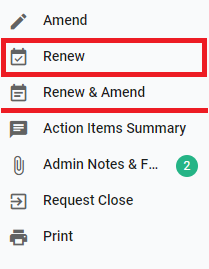
- Click the Renew button in the upper right-side corner of the screen.
*Note: If you select Renew and Amend, you will be able to make changes to your protocol details as shown in the “Submitting a Protocol Amendment on an Approved Protocol” section of this guide. If you select Renew you will only be able to fill out the supplemental information form that appears at the top of your application.
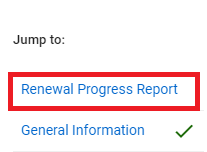
- Review the “Continuing Review” and “Renewal Attachments” sections to ensure the protocol does not require any amendments. These sections can be found by scrolling through the protocol or by clicking on “Renewal Progress Report” in the left-side menu.
- Click the Submit button in the right-side menu.

Creating, Reviewing, and Managing Protocols
California State University, Fresno
Requesting to Close an Approved Protocol
Step No. Instructions
1 From the Manage Protocols tab search for and open your protocol.
2
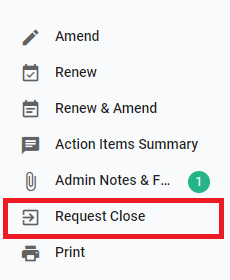
- Click the Request Close button in the right-side menu.
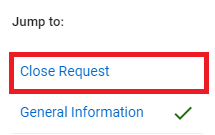
- Answer questions about initiation of study activities, which can be found by scrolling through the protocol or by clicking Close Request in the left-side menu.
- Click the Submit button in the left-side menu.

Creating, Reviewing, and Managing Protocols
California State University, Fresno
Assigning a Protocol for Departmental/Unit IRB Review – For Departmental/Unit IRB Chairs
Step No. Instructions
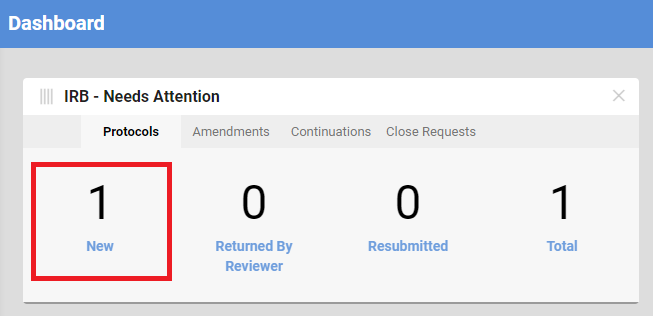
1 From the Dashboard (top of left-hand side of Kuali IRB homepage) click on New on the IRB - Needs Attention gadget.
All protocols submitted for your departmental/unit IRB review should show up in your list.
2 Find and click on the title of the protocol in need of review.


Creating, Reviewing, and Managing Protocols
California State University, Fresno
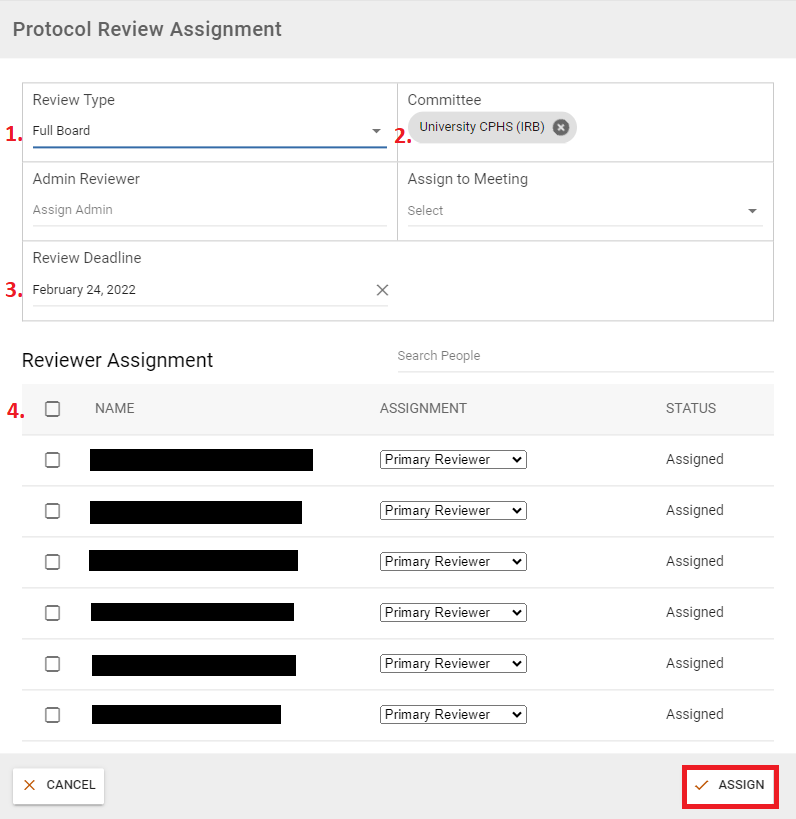
3 Click the Review Assignments button on the right-side action bar and enter the following details:
- Review Type: Full Board
- Committee: Enter the name of your departmental/unit IRB committee.
- Review Deadline: If relevant, assign a Review Deadline.
- Reviewer Assignment: Assign departmental reviewers as “Primary Reviewer” or “Secondary Reviewer”. (If you cannot see all members, use the “Search People” bar to find individual committee members by name.)
Click the Assign button at the bottom of the page.
The departmental/unit IRB members assigned by the chair should now see the protocol in their Protocols Assigned to Me list on their Kuali homepage.

Creating, Reviewing, and Managing Protocols
California State University, Fresno
Approving a Protocol - For Departmental/Unit IRB Chairs
Step No. Instructions
1 From the Manage Protocols tab search for and open your protocol.
*Note: If a Review Type has not been assigned the Approve button is disabled. Click
Review Assignments on the right-hand menu and select a Review Type.
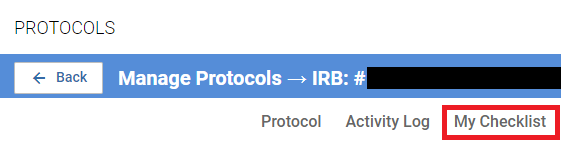
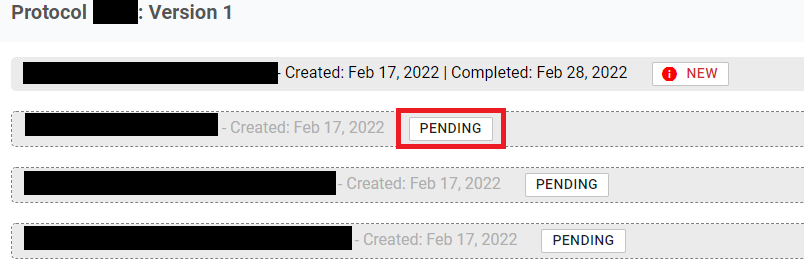
2 When all reviewers have submitted their reviews and the protocol is ready for approval, navigate to the Checklists tab in the top menu bar as shown below.
If any of the checklists show that they are pending, please ask the reviewer to submit their checklist. Steps about how to submit a review can be found in this guide on Pages 6-9.
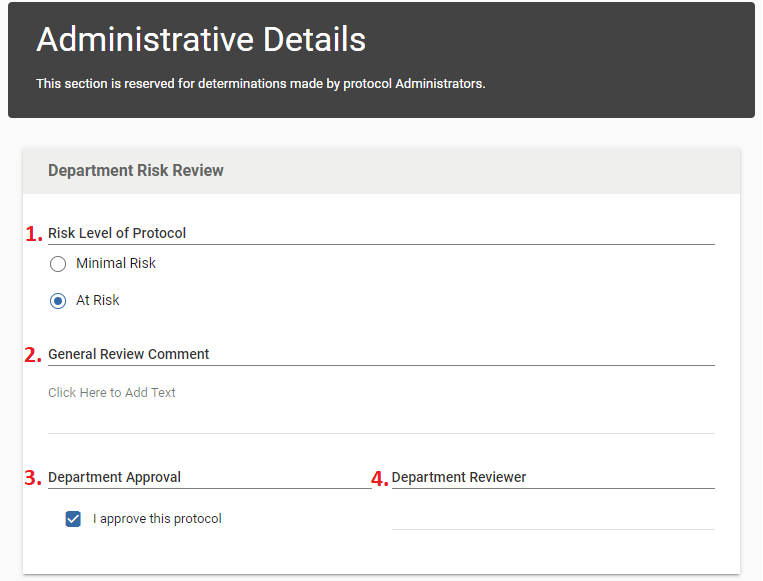
After all checklists have been submitted, you can navigate back to the top menu bar and then navigate to the Protocol tab. Navigate down to the Department Risk Review section.


Creating, Reviewing, and Managing Protocols
California State University, Fresno
Fill in the following fields:
- In the Risk Level of Protocol section, confirm the risk level of the project (“minimal risk” or “at risk”).
- If applicable, write any comments in the General Review Comment section.
- Check the I approve this protocol box.
- Type your name in the Department Reviewer field to indicate your electronic signature.
If the protocol is not ready to be approved until after revisions are made, please follow the steps for requesting revisions. This can be found on Page 23 of this guide. If disapproving a protocol, select Disapprove on the right side of the screen.
*Note: Approval and disapproval actions cannot be undone after submission.

Creating, Reviewing, and Managing Protocols
California State University, Fresno
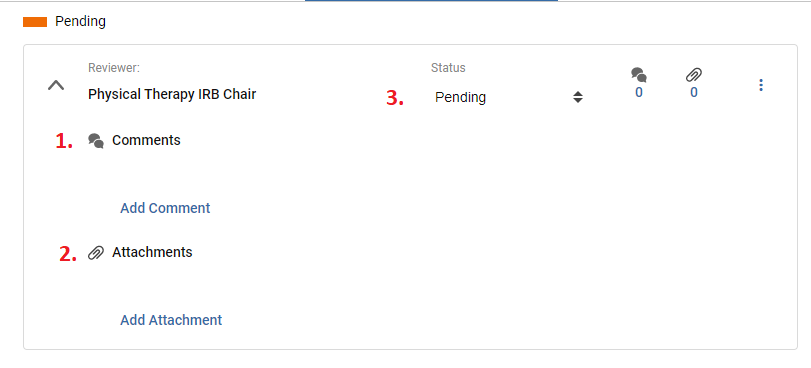
Once the protocol is ready for approval, please navigate back up to the top menu bar and click on the Departmental or Ancillary Review tab as shown below.
Click the button and select “(Your Department) IRB Chair” from the drop-down menu. Please fill in any of the following fields.
- Any Comments you would like to leave.
- Any necessary Attachments.
- The Status of the protocol. If you are approving the protocol, please change the “Pending” status to “Approved”.
After changing the status, the Departmental or Ancillary Review tab should appear green, and the status should change to Approved.
5 Once the protocol is ready to be approved in Kuali, email CPHS Chair Dr. Constance Jones (conniej@csufresno.edu), and CPHS Coordinator Celeste DeMonte (celestedemonte@csufresno.edu), indicating the protocol # that is ready to be approved in Kuali. If the protocol requires University CPHS review (externally funded or at risk), we will route it to the CPHS. If only departmental review and approval are necessary (unfunded minimal risk research), we will then take the final approval action in the Kuali system.




Creating, Reviewing, and Managing Protocols
California State University, Fresno
Requesting Revisions from the Principal Investigator – For Departmental/Unit IRB Chairs
Step No. Instructions
1 From the Manage Protocols screen click on the title of the protocol for which you would like to request revisions.
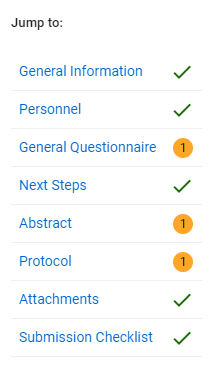
As the department IRB Chair, you should see any Action Items that were submitted by reviewers on the left-hand menu.
2
Clicking the name of each section with an Action Item will take you to that section. Clicking the button in the top right corner of each section will open all Action Items that have been posted to that section.


Creating, Reviewing, and Managing Protocols
California State University, Fresno
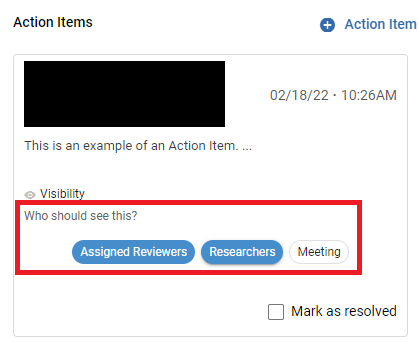
If you would like the department reviewers and/or PI to be able to see a comment, you can use the visibility settings to allow other Assigned Reviewers or Researchers to see the comment as shown below.
3

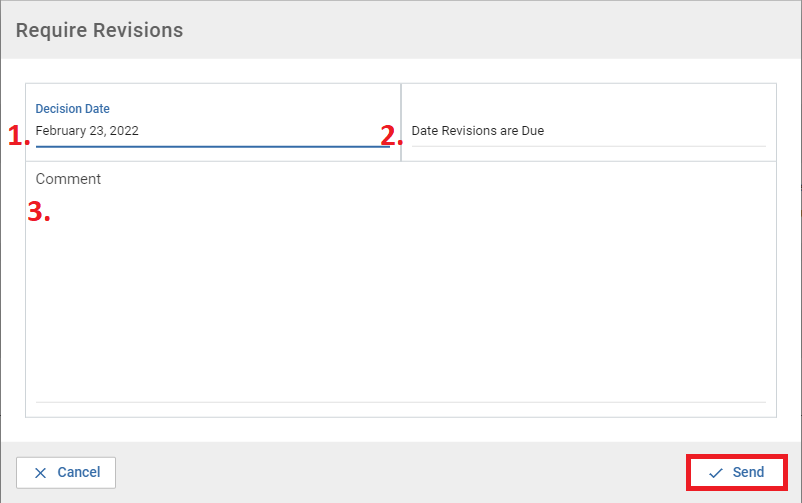
Click Require Revisions and complete the following fields:
- Decision Date: Leave as current date.
- Date Revisions Are Due: If applicable, assign a revision deadline for the PI.
- Comments: Type any comments you want the PI to see (Example: “Please review all Action Items and make appropriate revisions to the protocol.”)
Click the Send button at the bottom of the popup window.
Creating, Reviewing, and Managing Protocols
California State University, Fresno

This PDF is provided as a print-only reference document and may not be fully accessible to users of assistive technology. For more information, please visit Title II Rule on Digital Accessibility page.