Office of IDEAS
Quick Accessibility Fixes in Media Content
Error: Remove Potentially Harmful Flashing Content
What it Means: Animated images that flash or contain intense visual patterns. can trigger seizures or other adverse physical reactions.
Quick Fix: Remove or replace potentially harmful flashing content.
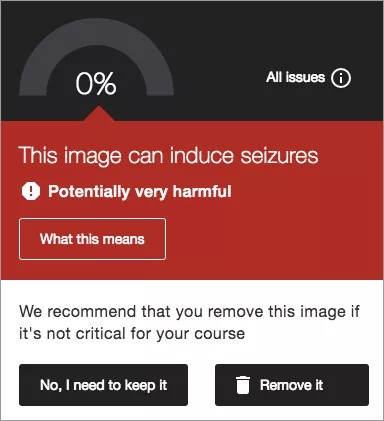
- On the Course Accessibility Report: Locate the issue named “This image can induce seizures.”
- Select the issue to view the affected files.
- Select the red or orange Ally Accessibility Indicator icon next to the file.
- The image will appear on the left side of your screen with a warning that it is “potentially seizure-inducing”, and the Instructor Feedback panel will be on your right.
- Select Remove Now. Replace it with content that does not flash or that flashes fewer than three times per second.
- If the content is essential to your course, select No, I need to keep it. Selecting this option does not currently improve your Ally score, and will alert students before opening the file.
Error: The image does not have a description.
What it means: Your image is not acknowledged by a screen reader!
Quick Fix: Add Alternative Text to Images
Images can be a great way to engage your learners with different modes of learning, and can help communicate complex ideas to students. For students with visual impairments, image descriptions that explain the content of an image are crucial for their learning. For all students, text descriptions can provide deeper context to aid their comprehension.
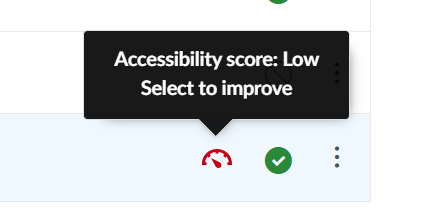
Select the Accessibility score indicator to open the instructor feedback panel. Follow the guided steps to add descriptions to your images.
Guide: Ally Add Alt Text to Images
DIAGRAM Center Guide for Image Description:
- Consider the context. What should a student learn from this image in this document?
- Be concise but complete. Include the information needed to understand the image, without unnecessary visual details.
- Start with the big picture. Identify the subject or type of graphic, then describe the relevant details.
- Use clear, objective language. Describe what is shown without adding unsupported interpretations.
- Avoid repeating nearby text. Focus on information the image adds.
Quick fixes are a great way to tackle small changes that can make a big difference. Some materials have more complex accessibility issues that need additional attention. Many of these issues are still fixable, but may take more time or require additional support. If you run into one, note the file and the issue, then email accessibility@mail.fresnostate.edu or schedule a consultation to work with us!