Office of IDEAS
Quick Accessibility Fixes for PDFs
Using the Ally tool, starting with content with the easiest issues to fix:
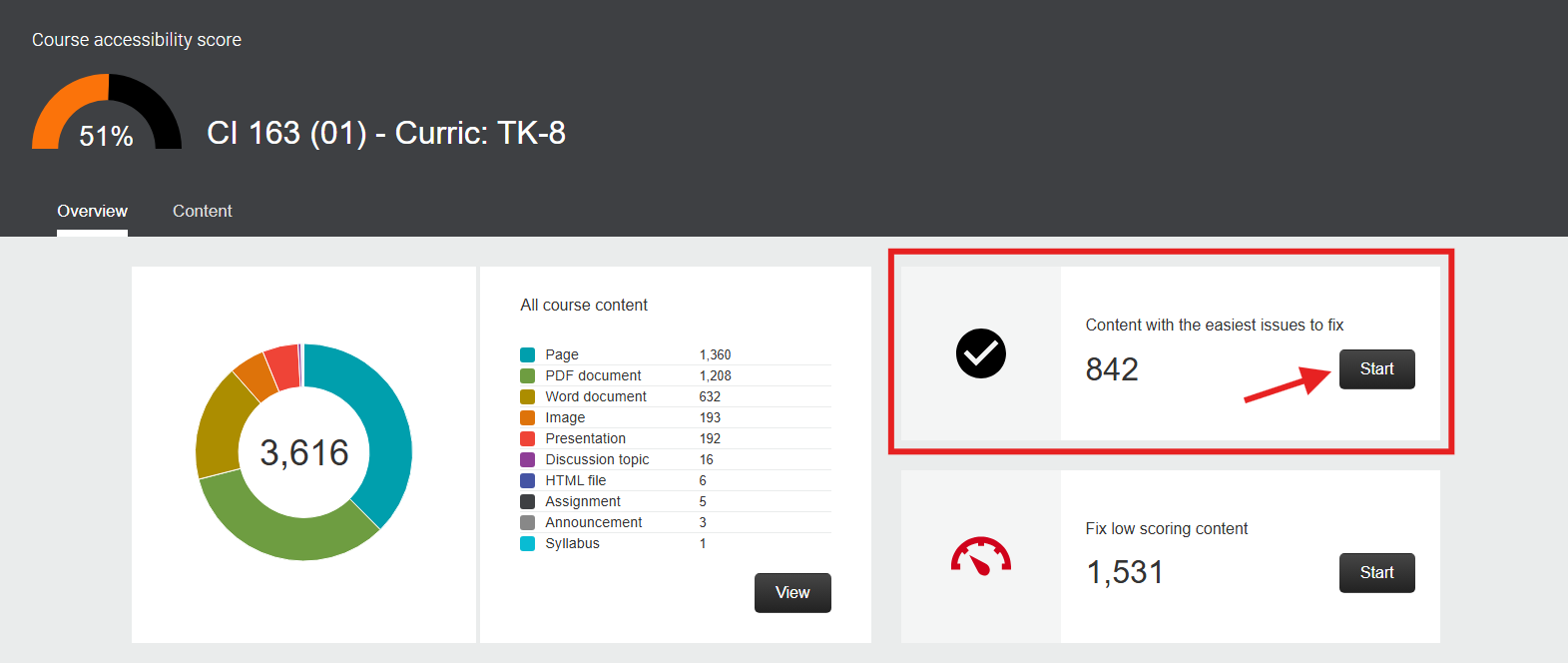
For PDF file type:
Error Code: “This PDF contains images without description”
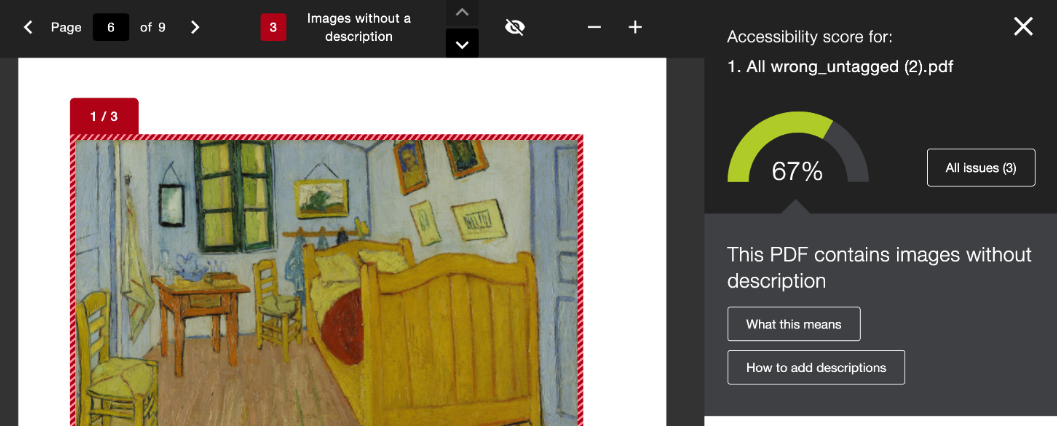
What it means: Your image is not being read by the screen reader.
How to fix: Provide a meaningful description of your image within Canvas using the Ally Steps to adding Alt Text in PDFs
DIAGRAM Center Guide for Image Description:
- Consider the context. What should a student learn from this image in this document?
- Be concise but complete. Include the information needed to understand the image, without unnecessary visual details.
- Start with the big picture. Identify the subject or type of graphic, then describe the relevant details.
- Use clear, objective language. Describe what is shown without adding unsupported interpretations.
- Avoid repeating nearby text; focus on information the image adds.
Error code: “This PDF does not have a title”
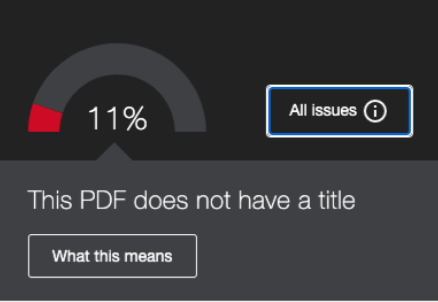
What this means: Your PDF needs a title for the screen reader to announce the document.
How to fix: Set a PDF Title within Canvas using the Canvas Steps to Ally Missing Title
Title guidelines:
- Titles may not be comprised of only special characters (like @!#$#$)
- Titles may not end in a period (.)
- Titles may not end with a file extension (like .pdf, .xls, etc.)
- Title may not match the filename exactly
Error code: “This PDF does not have a language set”
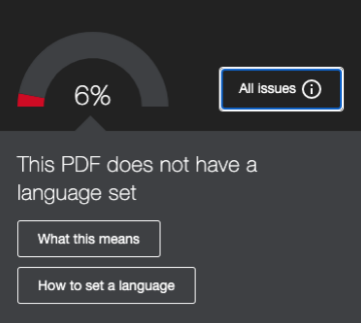
What this means: The screen reader doesn’t know what language it should be read in.
How to fix: Set your language within Canvas using the Canvas Steps to Missing Language
Error code: “This PDF is scanned”
What this means: The screen reader is not recognizing the text in your PDF to read out loud.
How to fix: Apply the OCR to scan your PDF for text readability using the Canvas Steps to Scanned PDF.
Scanned PDF Guidelines: Scanning your PDF makes text readable by screen reader, however it doesn’t ensure structuring the text in its proper format and order. Just scanning it is a great first step for a quick fix for this PDF. Then, you can visit our office for further assistance.
Other PDF errors take longer to fix. Please visit our office for support!
Quick fixes are a great way to tackle small changes that can make a big difference. Some materials have more complex accessibility issues that need additional attention. Many of these issues are still fixable, but may take more time or require additional support. If you run into one, note the file and the issue, then email accessibility@mail.fresnostate.edu or schedule a consultation to work with us!
Email for assistance Schedule a consultation